Mediabriz Conversation Actions helps you turn customer messages into an order directly from a messaging conversation.
Start an order
- From the conversation overview, select Actions.
- Select the order action you want to use.
The actions available to you are configured by your organization, so the action name may be different from the examples shown here.
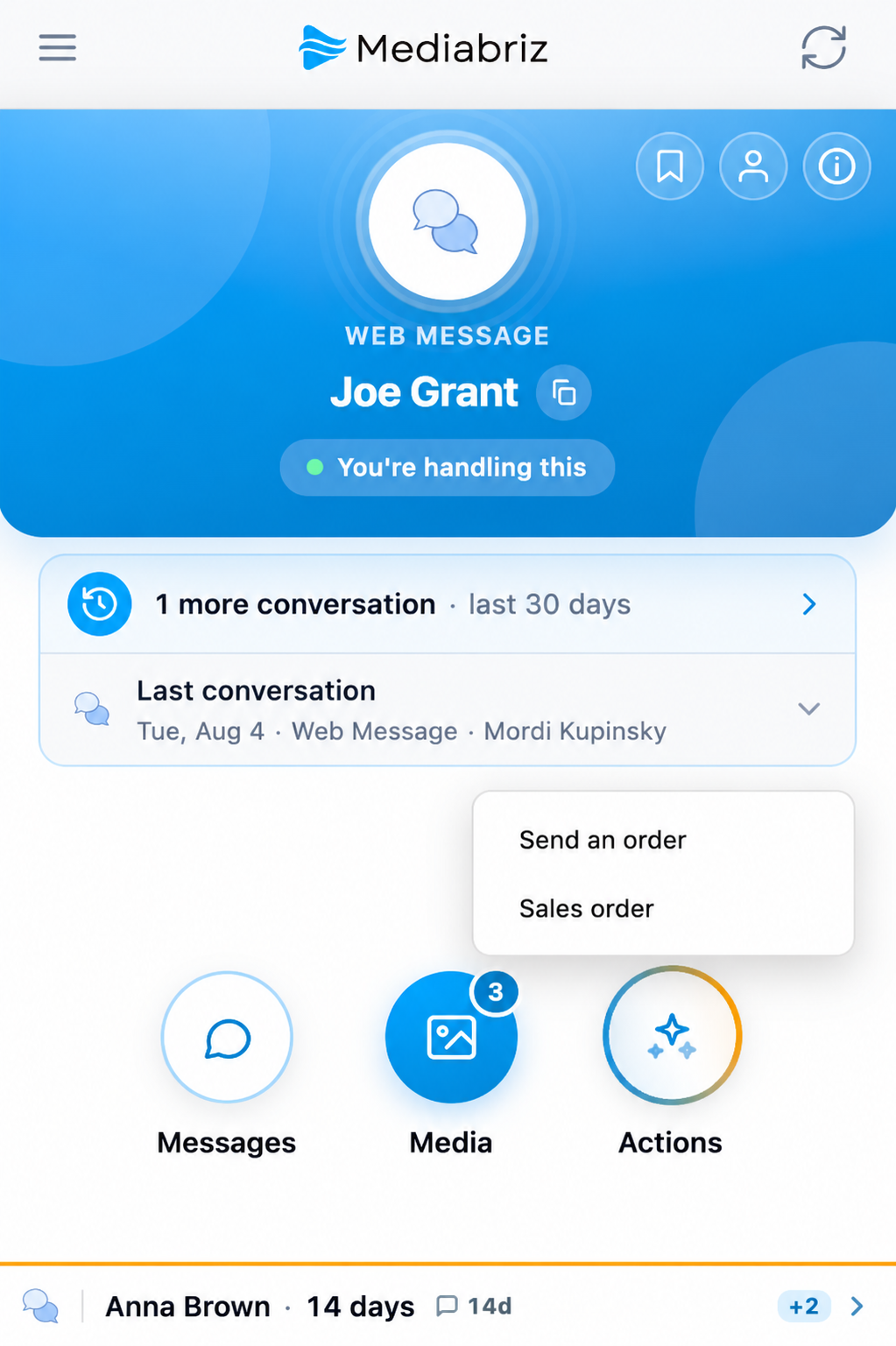
Mediabriz analyzes the conversation text and prepares a suggested order for you to review, using your organization’s product catalog to match the products mentioned in the conversation.
Files: You can include photos and single-page PDF files in the analysis. The text is always analyzed. Multi-page PDFs are not analyzed, but you can open them to read.
Review the order
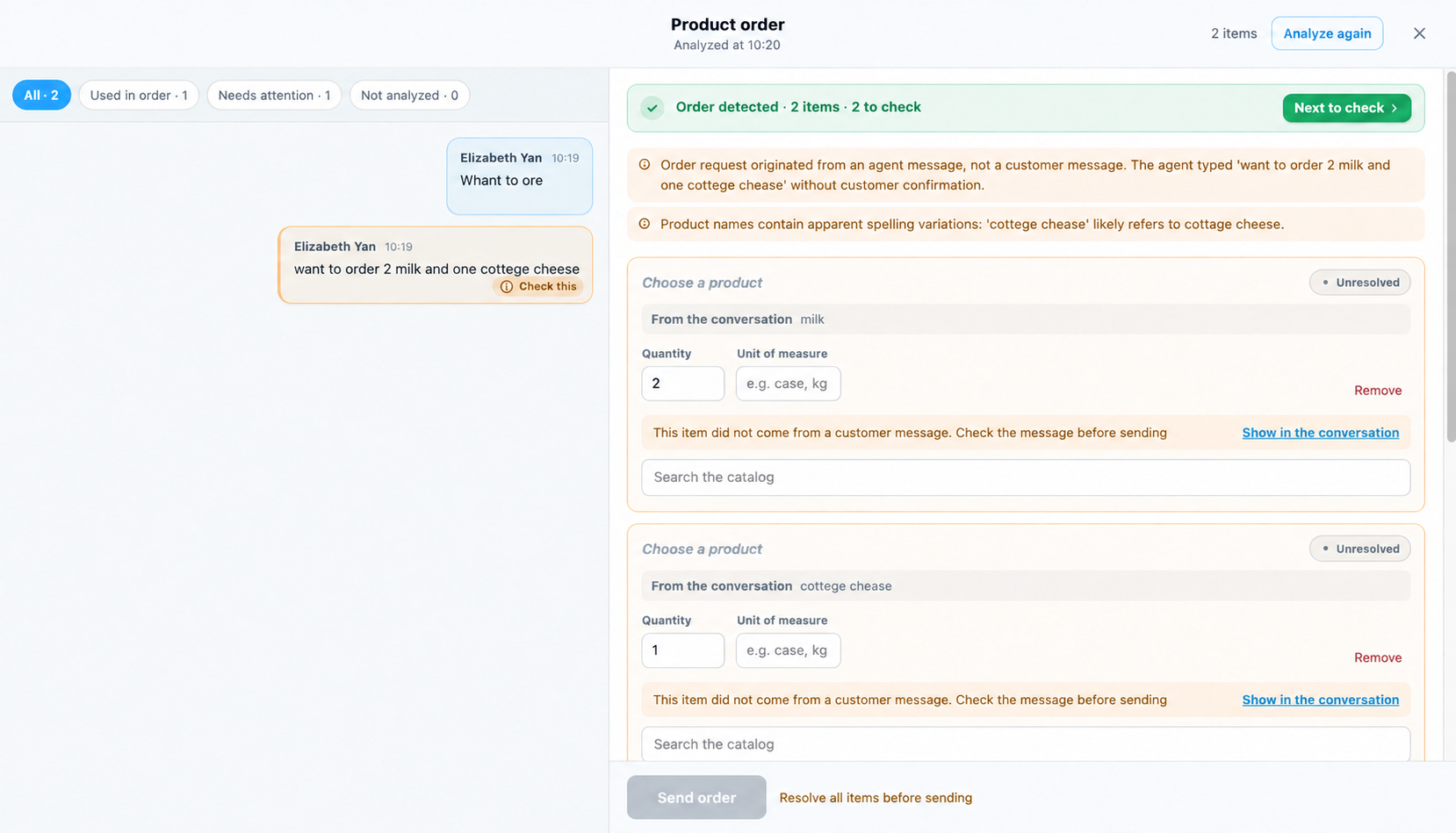
After the analysis, Mediabriz opens a side-by-side view so you can review the suggested order together with the conversation.
1. Check the conversation
- On the conversation side, check which messages were used, what needs attention and what was not analyzed.
- Select an image or PDF row to preview it. Select Back to conversation to return to the messages. Files blocked by the security scan cannot be opened.
2. Review the products
On the order side, check the products and quantities. You can change quantities, add or remove products, and search your organization’s catalog.
Resolve the amber items before sending:
- To confirm: Check the suggested product. Select Confirm to keep it, or choose a different product.
- Not identified: Choose a suggestion or search the catalog for the correct product.
These statuses need no additional confirmation:
- Matched (green): Mediabriz identified the product in the catalog.
- Selected (green): You chose or confirmed the product.
- Added manually (gray): You added the product from the catalog, or it came from a duplicated order.
The summary stays at the top as you scroll. N open shows how many items still need attention. Select Next open item, or Show the open item when only one remains.
3. Complete the order details
- Check the customer details and Requested delivery date. Correct any missing or incorrect information.
- Complete your organization’s custom fields, such as notes or a PO number. Required fields and fields with values stay visible. Look under More details for empty optional fields.
Other cases you may see
- Handwritten list: A product read only from a handwritten photo is marked To confirm. Check each suggested product against the photo before confirming it.
- Item from an agent or bot message: Select Show in the conversation to check the original message. The gray note does not itself block sending or require confirmation. When there are three or more informational notes, expand N notes on this reading to read them.
- No order found: If you see The conversation does not seem to contain an order, select Analyze again or add products manually from the catalog.
- Long order: Orders support up to 100 items. If the analysis result is cut short, check the conversation for additional items.
Send the order
Once all open lines are resolved, required fields are complete, and the customer details are checked, select Send order · 3 items (the count reflects your draft). With no lines, the label is Send order.
The order is sent to your organization’s system only after you review and approve it. Mediabriz does not submit orders automatically.
If an order was already sent and a new one is detected, the summary says New order detected. The earlier-order card is informational; there is no Send another order confirmation. Duplicate is available only when the current draft has no lines.
For administrators: Create Order and Create Return: Setup in Mediabriz.
Was this article helpful?
That’s Great!
Thank you for your feedback
Sorry! We couldn't be helpful
Thank you for your feedback
Feedback sent
We appreciate your effort and will try to fix the article