Administrators who managing Conversation Actions can use this guide to pause actions, check deliveries, find an action or remove one.
Open your configured actions
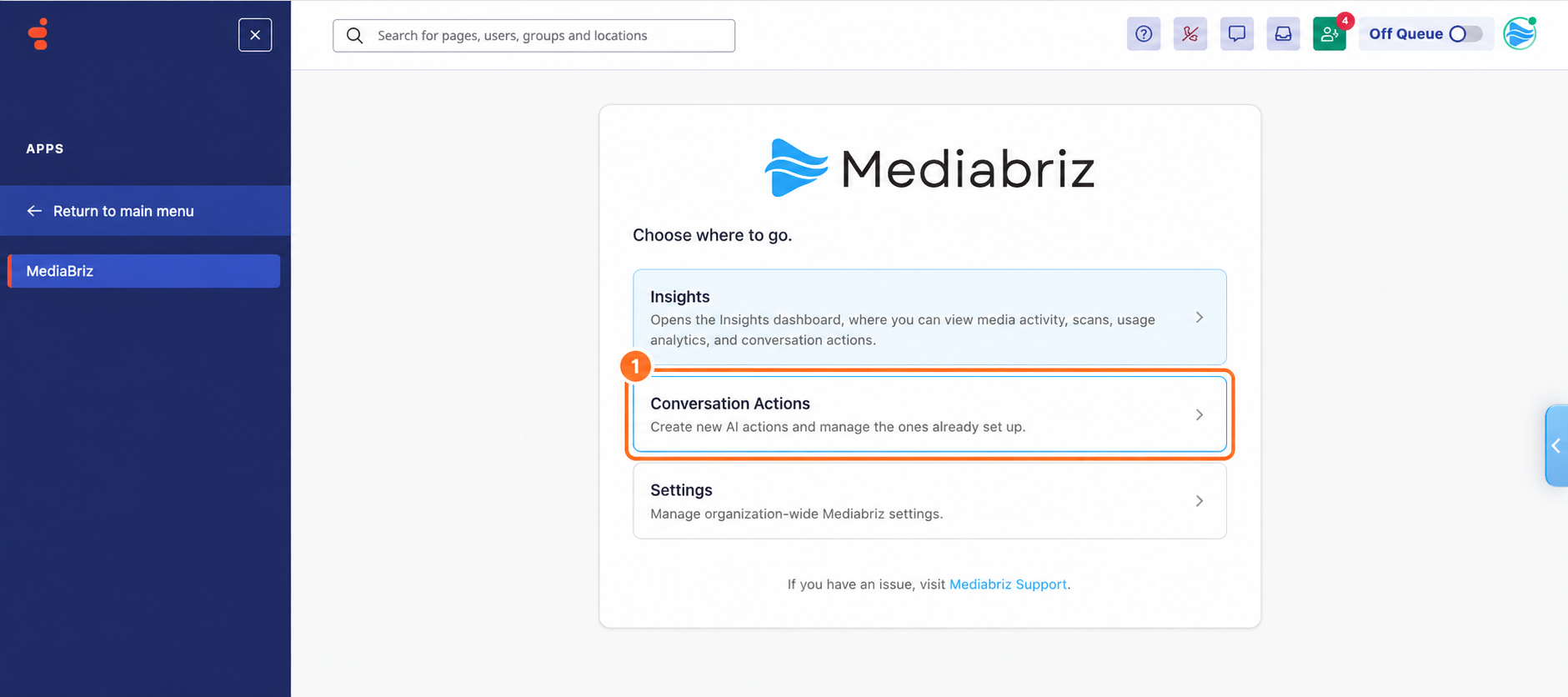
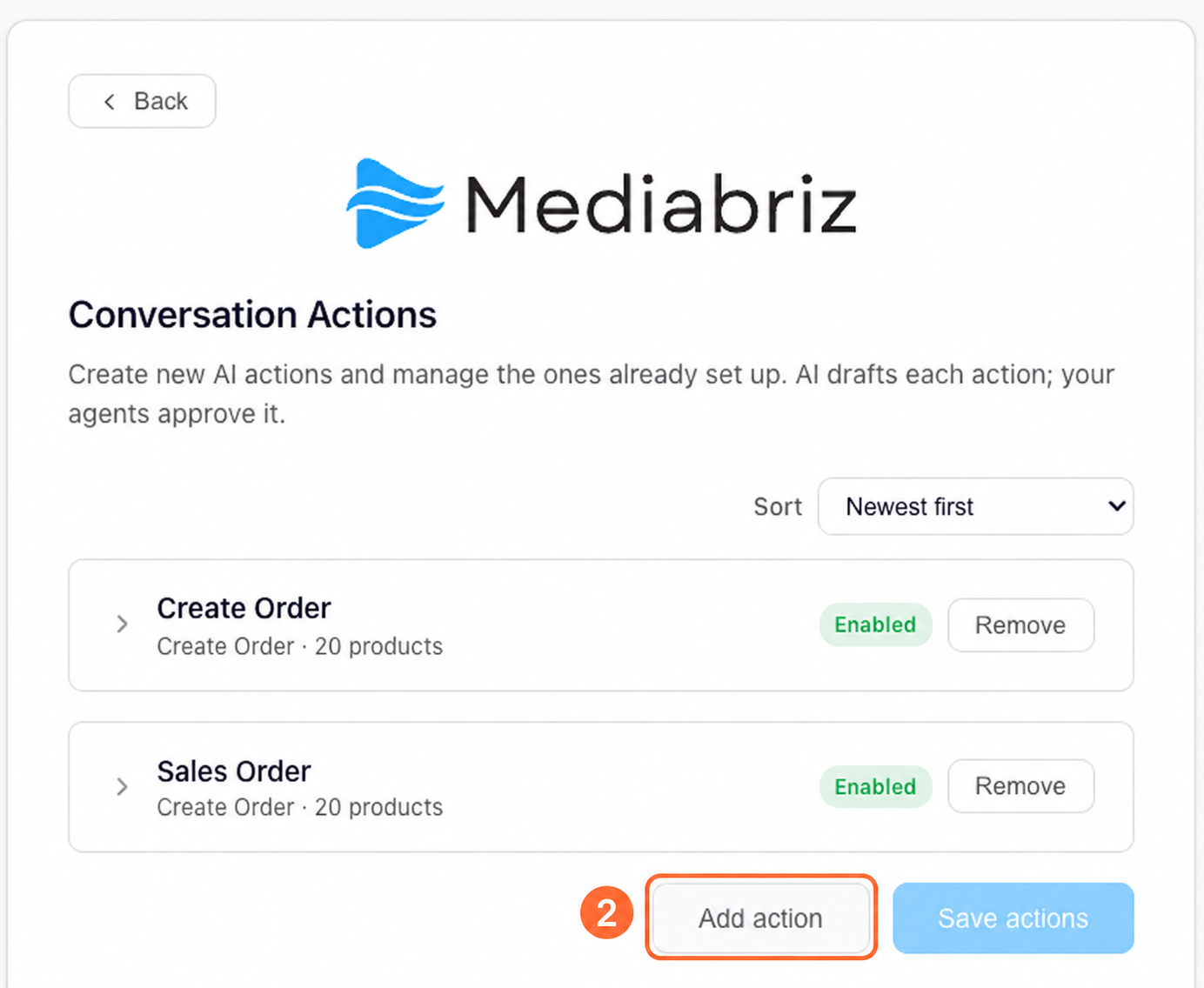
In Genesys Cloud, open Apps → Mediabriz → Conversation Actions and find the action you want to manage.
Pause or enable an action
Use the saved action's on/off switch. Switching it off hides it from agents immediately; its settings remain available. For connected actions, Test webhook remains available while disabled. Agents who already have Genesys Cloud open should reload it after the action is enabled.
Check recent deliveries
For Send Files to CRM, Create Order and Create Return, open Recent webhook deliveries (integration check). It shows seven days of real deliveries, their status or failure reason, item/file count, Sent by and Your reference. Tests are excluded.
Copy the Event ID and include any failure code when contacting support. For order and return history in Insights, see Monitor and review Conversation Actions.
Find an action
With two or more actions, use Sort: Newest first (default), Oldest first, Name, Type or Last modified. Unsaved actions stay at the top.
Remove an action
Select Remove and confirm. A saved action disappears immediately and receives no more deliveries. This cannot be undone. Removing an unsaved action only discards its settings.
Was this article helpful?
That’s Great!
Thank you for your feedback
Sorry! We couldn't be helpful
Thank you for your feedback
Feedback sent
We appreciate your effort and will try to fix the article