Mediabriz Insights gives you visibility into the Conversation Actions used across your organization.
Use this guide to monitor action activity, find submissions and review their results.
Open the Actions dashboard
To access the Actions dashboard:
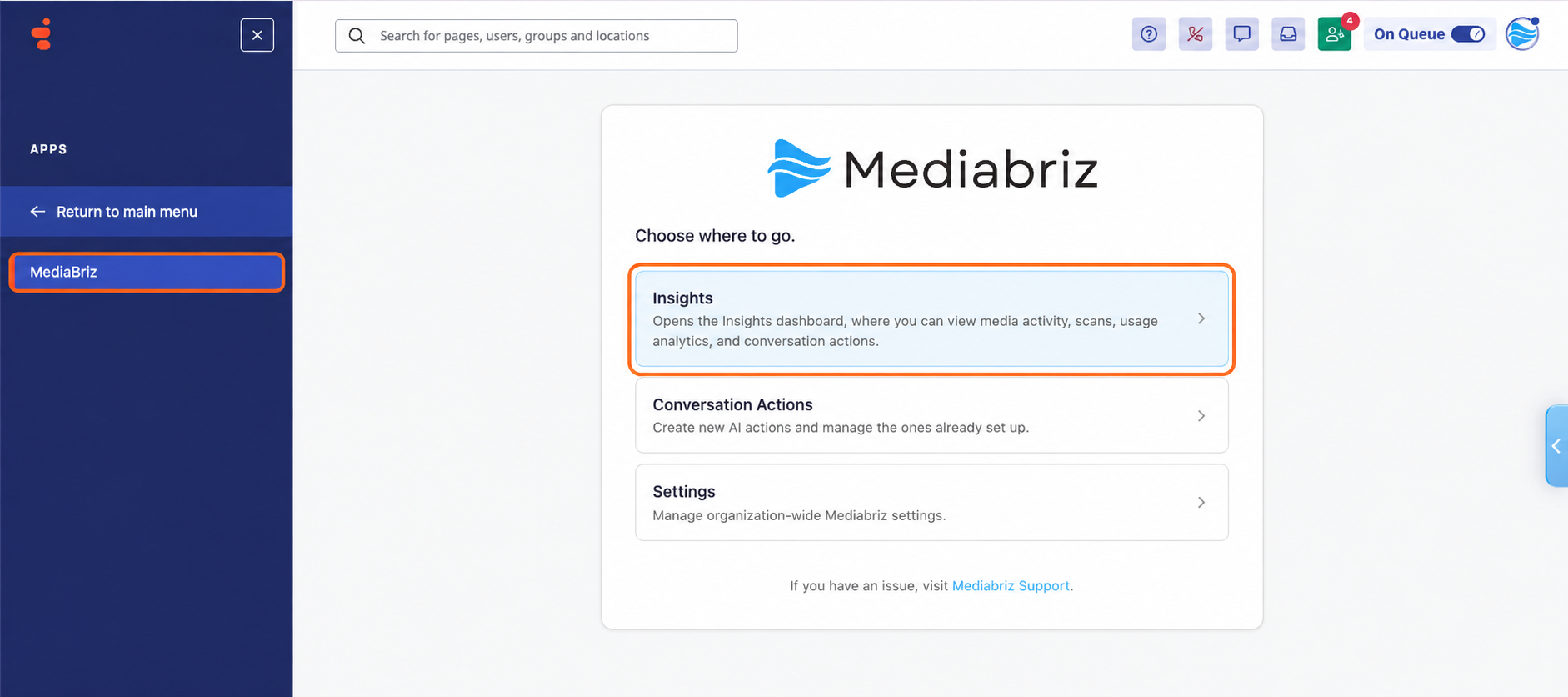
- From the Genesys Cloud main menu, select Apps.
- Select Mediabriz.
- Select Insights.
- In Mediabriz Insights, select the Actions tab.
Monitor action activity
The Actions Overview summarizes activity for the selected time period. Use the time-range controls to view activity for Today, the Last 7 days, the Last 30 days, or the Last 90 days.
Use the available figures to review activity and results:
- Analyses run: The number of Conversation Action analyses performed.
- Actions submitted: The number of actions submitted.
- Failed submissions: The number of submissions that failed.
- Submit rate: The percentage of analyses that resulted in a submitted action.
- Delivery fail rate: The percentage of submitted actions that failed to reach the configured system.
Use the dashboard’s charts and breakdowns to explore activity for the selected period. Analysis figures apply where an analysis is performed.
You can also review Submissions by action and Daily action activity for the selected period.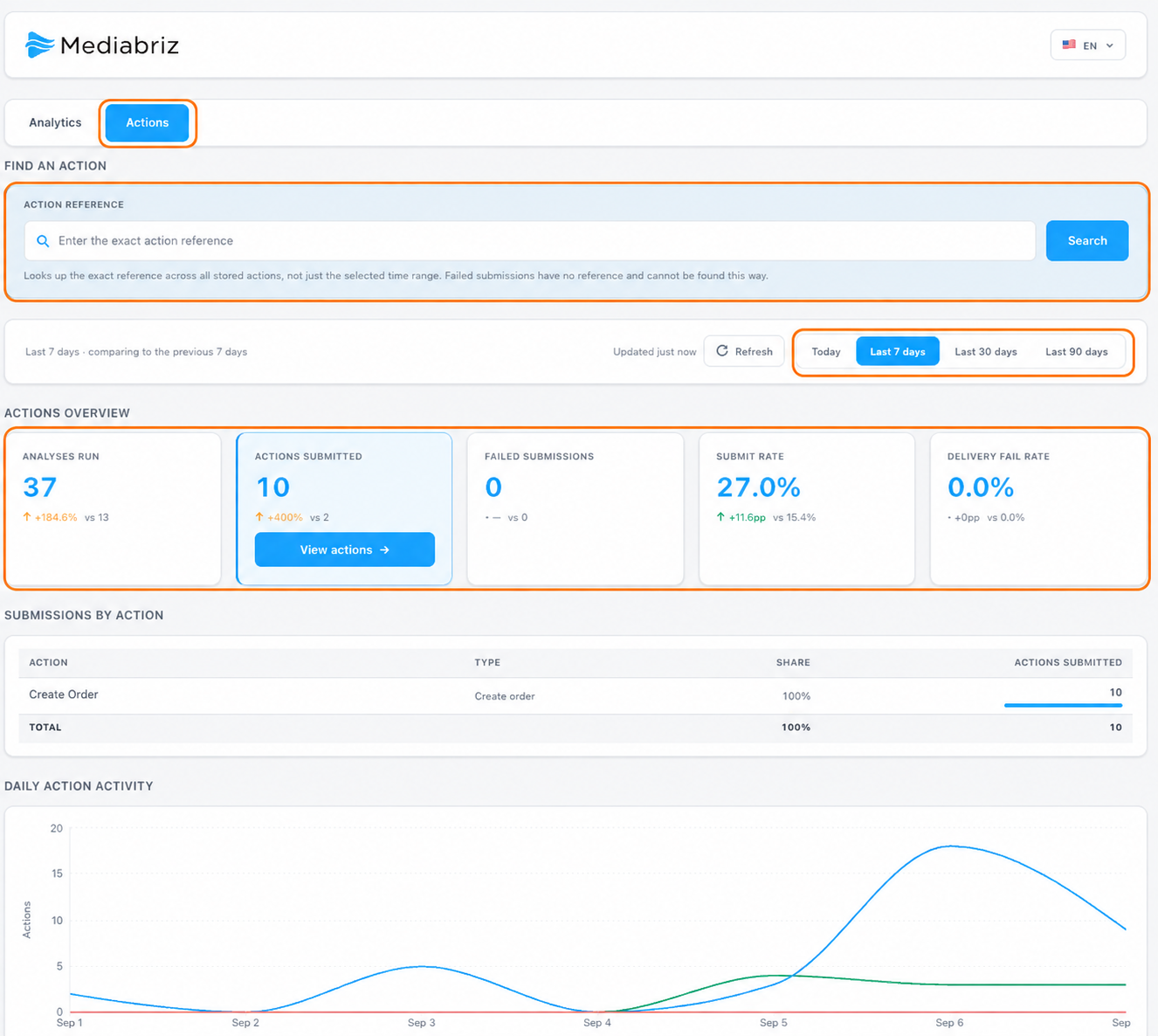
Find a specific action
If you know an action's reference, enter the exact value in Find an Action, then select Search.
The search checks stored action history and is not limited to the time range currently selected on the dashboard.
Note: Failed submissions do not have a reference and cannot be found using the action-reference search.
View submitted actions
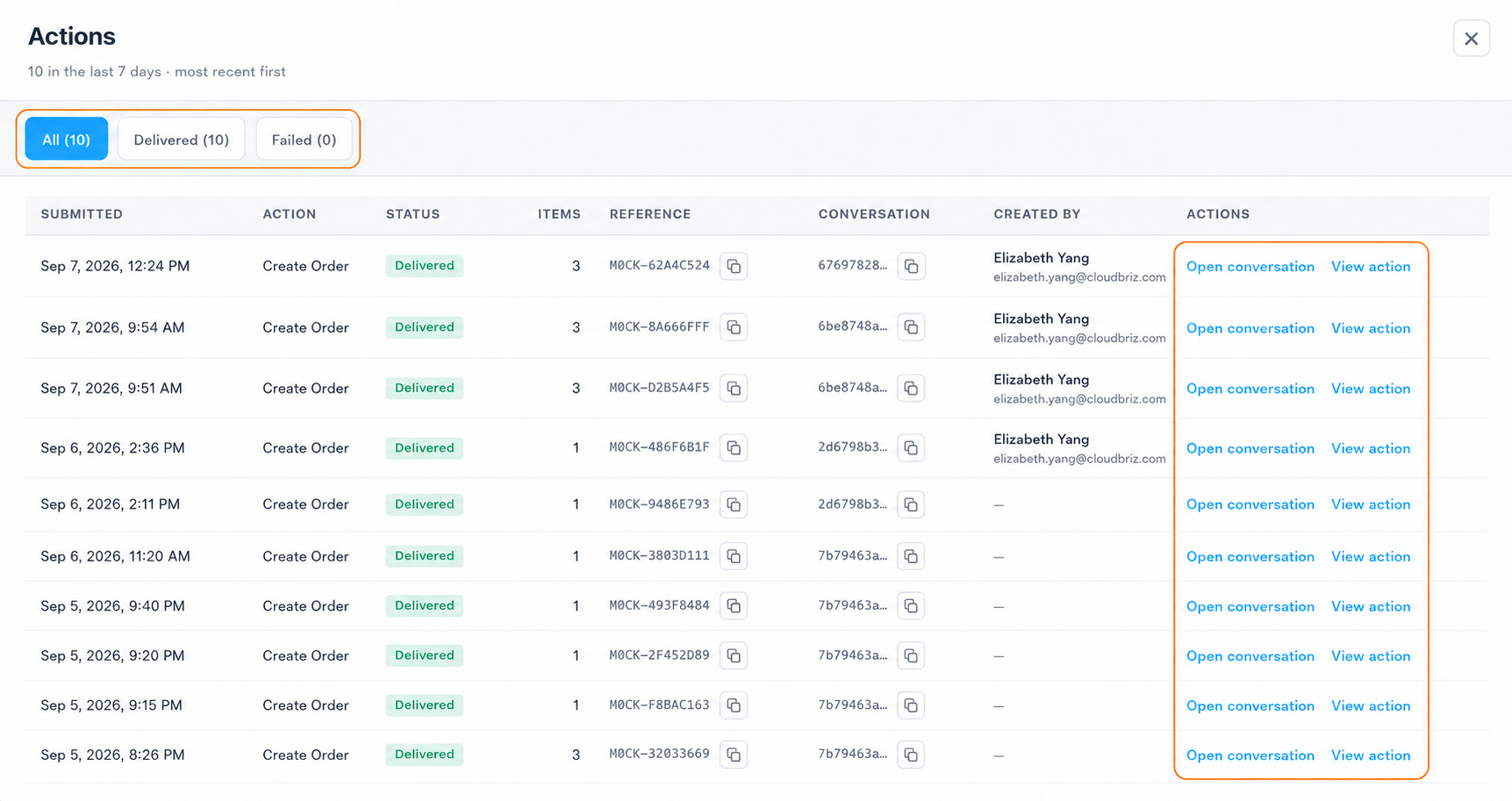
Select View actions in the Actions Overview to see submitted actions for the selected period.
Use the available filters to narrow the results. Review each submission’s action, time and status, along with its reference and related conversation where available.
Review an action
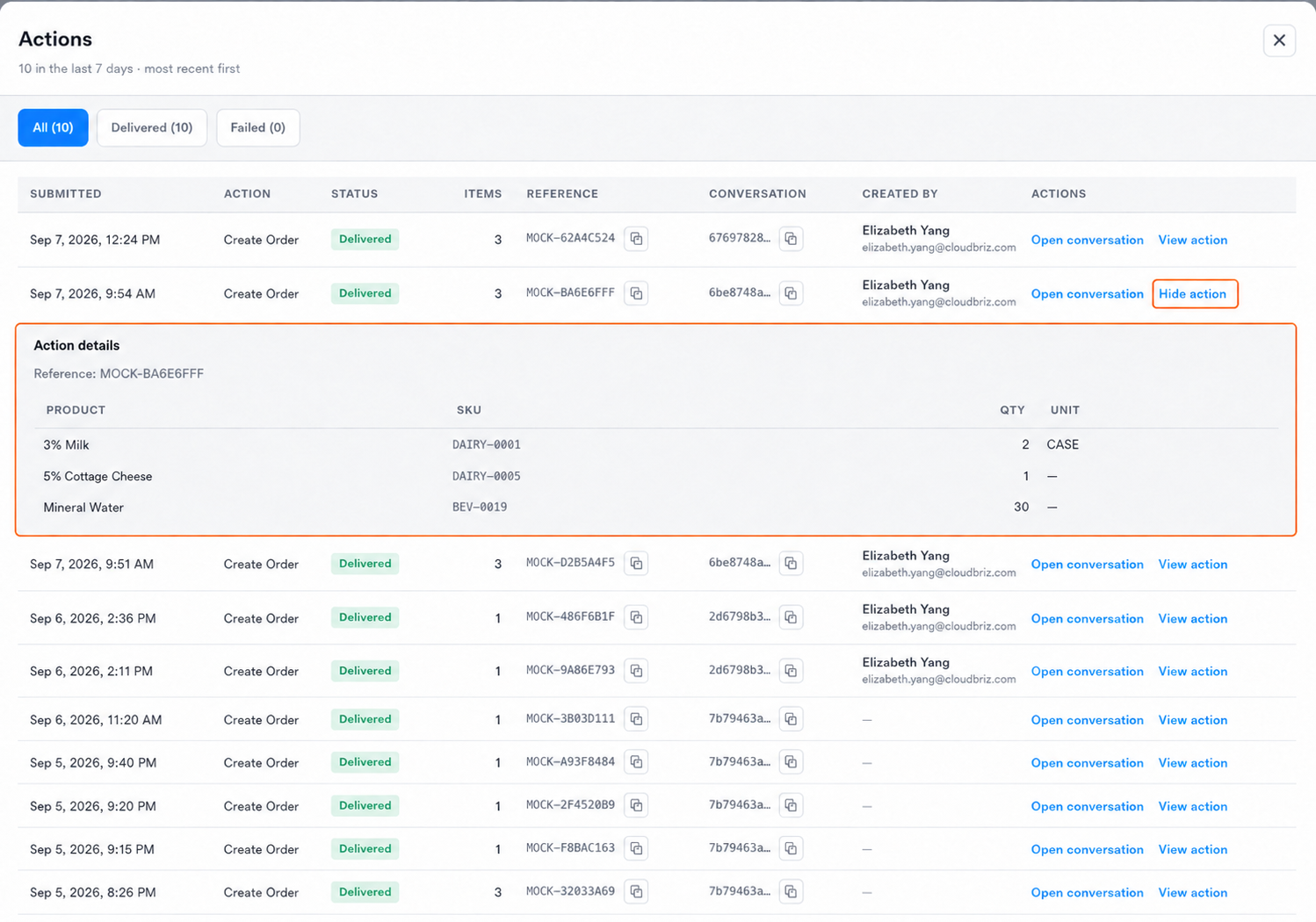
Select View action beside an action to expand its details.
Review the information recorded for the submission. Select Hide action to close the details.
Example - a return action type: The Returned items section shows the submitted products, including product name, SKU, quantity and unit. Return reasons, references, pickup dates and custom field values are delivered to your organization’s system and are not stored by Mediabriz, so they are not shown here.
Open the related conversation
Select Open conversation to open the associated conversation in Genesys Cloud when additional review is needed.
Was this article helpful?
That’s Great!
Thank you for your feedback
Sorry! We couldn't be helpful
Thank you for your feedback
Feedback sent
We appreciate your effort and will try to fix the article