Secure File Delivery is an optional security feature for organizations using Mediabriz Guard. It helps prevent agents from bypassing Mediabriz Guard by downloading conversation files directly from Genesys Cloud Workspace.
This protection is not enabled automatically. It requires activation by Mediabriz support and a firewall rule configured by your organization's IT team.
How does it work?
When Secure File Delivery is enabled, Mediabriz handles file access through its servers, including previewing, downloading, playing, copying, and dragging files.
Clean files can be opened and downloaded.
Threats, files still being scanned, and files that could not be scanned remain blocked.
Direct downloads through Genesys Cloud Workspace are blocked by your organization's firewall rule.
Important: Mediabriz Guard alone does not block downloads from Genesys Cloud Workspace. The firewall rule is required to prevent agents from bypassing Mediabriz Guard.
Step 1: Activate Secure File Delivery
Before configuring your firewall:
Confirm that Mediabriz Guard is active.
Update all agents to the latest Mediabriz version. Older versions retrieve files directly from Genesys Cloud and may stop working after the firewall rule is applied. They may also display a misleading session-expired error.
Contact Mediabriz support to request Secure File Delivery activation.
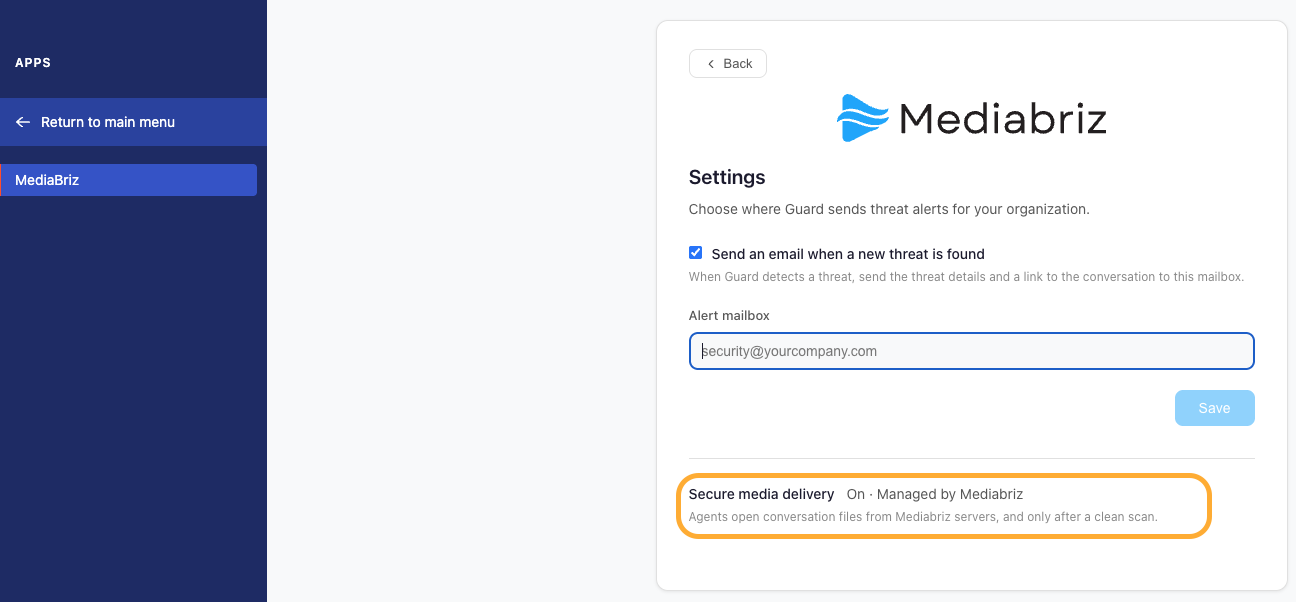
Once activated, you can verify the status in Mediabriz Settings:
Secure file delivery: On · Managed by Mediabriz
Agents automatically switch to Secure File Delivery within approximately one hour.
Step 2: Configure your firewall
To prevent direct file downloads from Genesys Cloud Workspace, your IT team must configure one of the following firewall rules.
Important: Both options may affect other Genesys Cloud features. We recommend testing with a small group of agents before applying the rule organization-wide.
Where supported, apply the rule only to agents and exclude administrators or supervisors who require access to other Genesys Cloud downloads.
Identify your Genesys Cloud region
Use the region domain from your Genesys Cloud sign-in address.
For example, if your sign-in address is:
login.euw2.pure.cloud
The relevant hosts are:
api.euw2.pure.cloudapi-downloads.euw2.pure.cloud
You can confirm your region in the Genesys Platform API regions list.
Option 1: Block the download path (Recommended)
This option blocks the specific Genesys Cloud download API path rather than the entire download host, reducing the impact on other features.
Firewall configuration:
Hosts:
api.<your region domain>andapi-downloads.<your region domain>Path:
/api/v2/downloads/and all paths beginning with itMethods: All
Matching: Case-insensitive
This option requires TLS inspection on both hosts and a trusted gateway certificate on agent devices.
Do not block:
api-downloads.<your region domain>/conversation-messaging/uploads/The entire
api.<your region domain>host, as this can disrupt Genesys Cloud.apps.<your region domain>orlogin.<your region domain>Mediabriz domains, including
api.mediabriz.com,eu.api.mediabriz.com,media.mediabriz.com, andeu.media.mediabriz.com
Possible impact on other features
Downloads using /api/v2/downloads/, including some contact list and report exports, will also be blocked.
In Mediabriz testing, voicemail and Architect prompt playback continued working because they use different paths. However, other recording playback scenarios and Architect prompt export have not been fully verified.
Option 2: Block the entire download host
Use this option only if your organization cannot perform TLS inspection and accepts the broader impact on Genesys Cloud functionality.
Firewall configuration:
Block api-downloads.<your region domain> using DNS or hostname (SNI) filtering.
Important: This blocks all downloads served from that host, not just conversation attachments.
Affected functionality may include:
Voicemail downloads and personal recordings
Call recording playback and transcription
Contact list and report exports
Architect prompt export and playback
Other features may also be affected. Flow export worked during testing, but sending messaging attachments has not yet been verified.
Blocking api-downloads.mypurecloud.com also affects the ChromeOS screen recording helper used across Genesys Cloud regions.
Step 3: Make sure the rule covers all agents
Your firewall configuration must apply to all relevant agent traffic, including remote workers.
Review the following network considerations:
| Area | What to check |
|---|---|
| Remote agents | Ensure traffic passes through your VPN or cloud security gateway. |
| DNS filtering | Enforce your organization's DNS servers and disable DNS-over-HTTPS bypass using DnsOverHttpsMode = off. |
| QUIC / HTTP/3 | If your gateway cannot inspect HTTP/3 traffic, block UDP 443 to the relevant hosts or configure QuicAllowed = false. |
| Proxy settings | Allow files up to 100 MB through api.mediabriz.com or eu.api.mediabriz.com. Check buffering, size limits, and download scanning. |
| Existing download links | Previously issued Genesys download links may remain valid for up to one hour after enforcement. |
Step 4: Test before enabling for everyone
After Secure File Delivery is activated and agents have updated Mediabriz, we recommend the following rollout:
Run the firewall rule in monitoring mode for a few days, if supported.
Review matching traffic and potential impact on other Genesys Cloud features.
Enable blocking for a small pilot group.
Complete the tests below before expanding to all agents.
Verification checklist
Perform these tests on an agent device covered by the firewall rule.
Clean file in Mediabriz: The file opens, previews, and downloads successfully.
Threat detected in Mediabriz: The file cannot be opened or downloaded. If permitted by your security policy, use an EICAR antivirus test file in a test conversation.
Same clean file in Genesys Cloud Workspace: Direct opening and downloading fail.
Firewall logs: Confirm that the required download paths are blocked on both hosts (Option 1), or that the download host is blocked (Option 2).
Other Genesys Cloud features: Verify that your organization's essential workflows continue to function as expected.
What will agents experience?
Once configured, agents can continue working with clean conversation files through Mediabriz.
Depending on the file status, they may see:
| File status | Expected behavior |
|---|---|
| Clean | Opens and downloads normally through Mediabriz |
| Threat detected | File access is blocked |
| Not scanned | "Not scanned, so this file stays closed" |
| Scanning in progress | "Analyzing…" |
| Missing or expired | "Unavailable or Expired" |
| Mediabriz temporarily unavailable | "This file can't be opened right now. Try again in a moment." |
Additional considerations:
Small gallery thumbnails may remain visible regardless of scan status.
In Genesys Cloud Workspace, blocked downloads or broken image previews are expected.
Some bot and rich-message images may also become unavailable if they use the blocked download path.
What happens if Mediabriz is unavailable?
If Mediabriz becomes temporarily unavailable, it attempts to retrieve files directly from Genesys Cloud only when they were previously marked clean.
However, if your firewall rule is active, this fallback is also blocked. Files will remain unavailable until Mediabriz service is restored or the firewall rule is temporarily removed.
Files identified as threats or otherwise refused by Mediabriz are never made available through this fallback.
How to disable the protection
To stop blocking direct Genesys Cloud downloads:
Remove the firewall rule. Direct access is restored without changing Mediabriz settings.
To completely disable Secure File Delivery:
Remove the firewall rule first.
Contact Mediabriz support to disable Secure File Delivery.
Always remove the firewall rule before disabling Secure File Delivery. Reversing this order can prevent agents from opening files in Mediabriz.
For assistance with activation or configuration, contact Mediabriz support.
Was this article helpful?
That’s Great!
Thank you for your feedback
Sorry! We couldn't be helpful
Thank you for your feedback
Feedback sent
We appreciate your effort and will try to fix the article