Send Files to CRM lets you send files from a customer conversation to your organization's CRM or operational system, without downloading and uploading them yourself.
Send files from a conversation
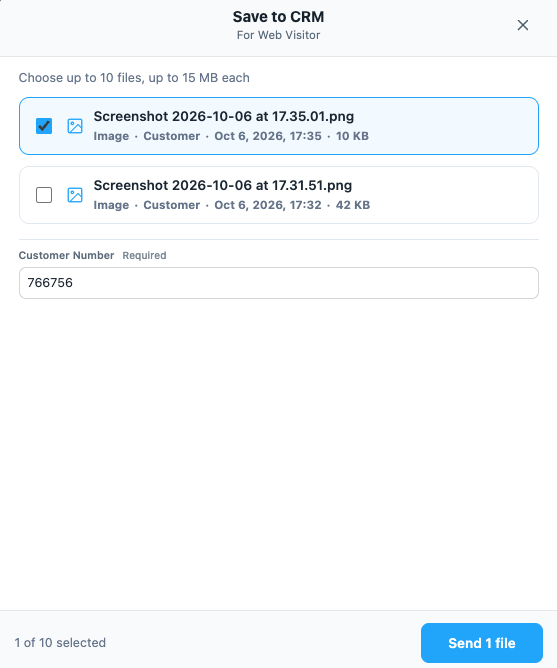
- Open the conversation in Mediabriz.
- On Overview, select the configured action button, for example Save to CRM. If several actions are available, select Actions, then the action.

- Review the files shared in the conversation.
Note: Images embedded inside a message, such as a bot message, are not listed. - Select up to 10 files, up to 15 MB each. The counter shows how many you have selected.
- Complete any required fields, such as a case number or document type. Send remains unavailable until required fields are filled.
- Select Send 3 files, or the equivalent button for your selection. Files show Preparing…, then Ready.
When your system accepts the delivery, you see Files sent and the number sent.
If some files cannot be prepared, the others are still sent.
The confirmation lists the files that were not sent and why, such as Over 15 MB or Could not be prepared.
Recognize files already sent
Files previously sent by this action from the conversation are tinted and marked Sent · with the time.
You can select and send them again when needed; the marker helps you avoid accidental duplicates.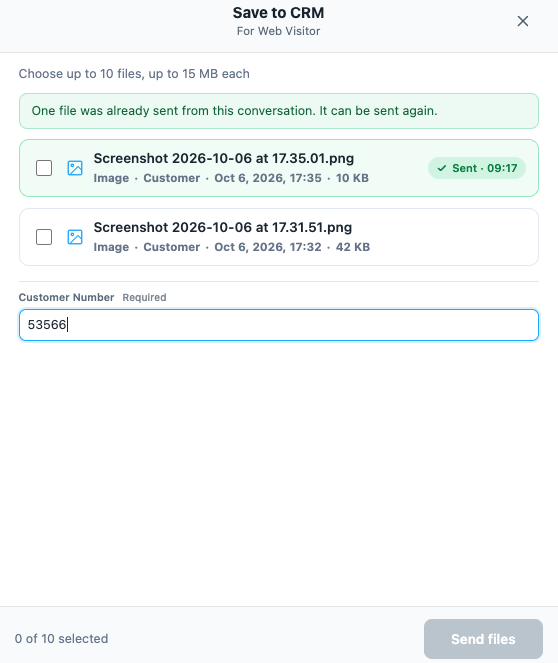
Overview also lists sends from the conversation and their file counts. Mediabriz does not keep file names in this history.
Why is a file unavailable?
Unavailable files are greyed out. Point to a file to see the reason.
| Label | Meaning |
|---|---|
| Over 15 MB | The file exceeds the per-file limit. |
| Expired | The file is no longer available in Genesys Cloud. |
| Analyzing | The security scan is still running. The file becomes selectable in the open window once it is marked clean. |
| Threat found | The scan found malware. The file cannot be sent. |
| Not scanned | The file could not be scanned and cannot be sent. |
| Scan failed | The scan did not finish. It runs again in a few minutes. |
The last four labels apply when your organization uses Mediabriz Guard. Without Guard, files are sent without a security scan.
If you cannot send
| Problem or notice | What to do |
|---|---|
| The action button is missing. | Reload Genesys Cloud. If it is still missing, ask your administrator to check that the action is enabled for you and that Mediabriz is up to date. |
| Your system did not accept the files or could not be reached. Try again | Select Send again. If the problem continues, contact your administrator. |
| None of the files could be prepared. Nothing was sent. | Check the reasons beside the files. No files reached your system. |
| This action was changed. Please reopen it. | Close the window and reopen the action to load the updated settings. |
| This action is not set up yet. Ask your administrator to complete its setup | Ask your administrator to check the action's configuration and availability. |
Nothing is sent until you choose files and confirm. Send only the files needed for the customer's case.
Was this article helpful?
That’s Great!
Thank you for your feedback
Sorry! We couldn't be helpful
Thank you for your feedback
Feedback sent
We appreciate your effort and will try to fix the article