Each Conversation Action that works with products uses its own product catalog to match products mentioned in customer conversations with the products and SKUs used by your organization.
For example, both Create Order and Create Return use a product catalog. Returned products are matched to SKUs in the same way as ordered products.
A separate catalog is uploaded for each configured action.
Before you start:
Each configured action also requires a webhook integration to send approved results, such as orders or returns, to your organization's system. If the integration has not yet been configured, see: How do I integrate Create Order with my organization’s system?
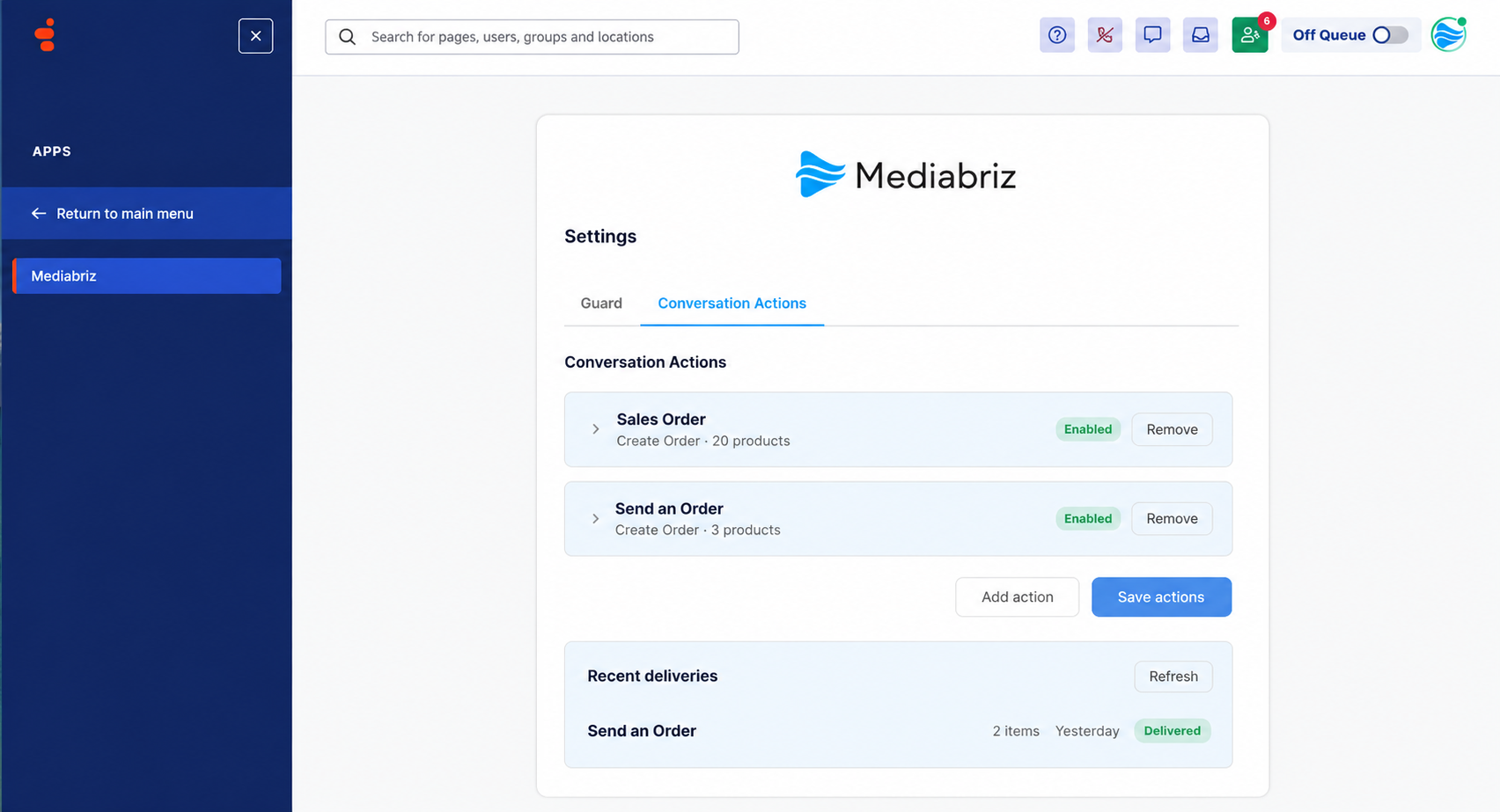
Open the Conversation Actions settings
To access the product catalog settings:
- From the Genesys Cloud main menu, select Apps.
- Select Mediabriz.
- Open the Conversation Actions tab.
- Select the action you want to configure.
Prepare your catalog
The product catalog must be a CSV file encoded in UTF-8 and include a header row.
You can download a ready-to-use template from the Product catalog section of the action settings and replace the example rows with your own products.
The catalog supports the following columns:
| Column | Required | Description |
|---|---|---|
sku | Yes | Your unique product identifier. |
product_name | Yes | The product name displayed to agents and included in the order. |
description | No | Additional information that can help identify the product. |
unit | No | Unit of measure, such as CASE, EA, or KG. |
package_size | No | The number of units included in a package. |
aliases | No | Alternative names customers may use for the product. |
active | No | true or false. If empty, the product is considered active. Inactive products are not matched or offered to agents when using the action. |
Improve product matching with aliases
Use the aliases column to include other ways customers may refer to a product.
You can include nicknames, abbreviations, common misspellings, or product names in different languages. Separate multiple aliases using the pipe character (|).
For example:
milk|whole milk|milk 3%
Adding the terms your customers actually use can significantly improve product matching.
Upload the catalog
From the Conversation Actions tab, open the relevant action and locate the Product catalog section.
Upload your CSV file. Mediabriz validates the file and displays an import summary showing how many products were imported and whether any rows were skipped or contained errors.
The catalog can contain up to 100,000 product rows or 5 MB, whichever limit is reached first.
Updating an existing catalog
Uploading a new catalog replaces the entire existing catalog for that action. It does not add or merge products with the current catalog.
If you need to update even one product, make the change in your full catalog file and upload the updated file again. You can also download the currently active catalog from the action settings.
To keep a product in the catalog but prevent it from being matched or ordered, set its active value to false.
If the catalog contains errors
Individual invalid rows may be skipped while the remaining valid products are imported. Mediabriz shows the affected rows and the reason they were skipped.
The entire upload is rejected if the required sku or product_name column is missing, the file is not a valid UTF-8 CSV, the file exceeds the supported limits, or no valid product rows remain.
Was this article helpful?
That’s Great!
Thank you for your feedback
Sorry! We couldn't be helpful
Thank you for your feedback
Feedback sent
We appreciate your effort and will try to fix the article