Mediabriz allows administrators and integrators to create and configure Conversation Actions for their organization.
Each action has an action type, such as Create Order or Create Return, and its own display label, business context, custom fields, webhook integration, product catalog, and agent availability.
Open Conversation Actions
To create a new action:
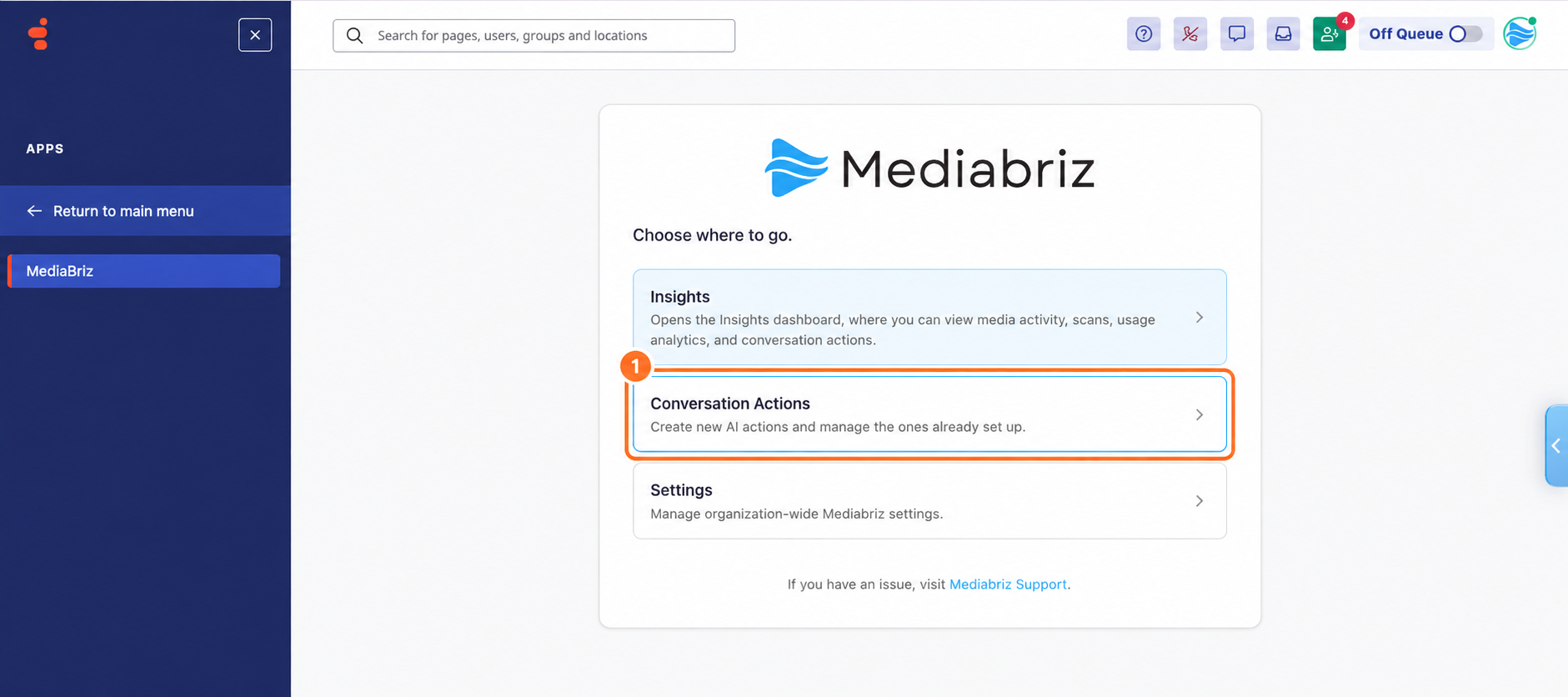
- From the Genesys Cloud main menu, select Apps.
- Select Mediabriz.
- Select Conversation Actions.
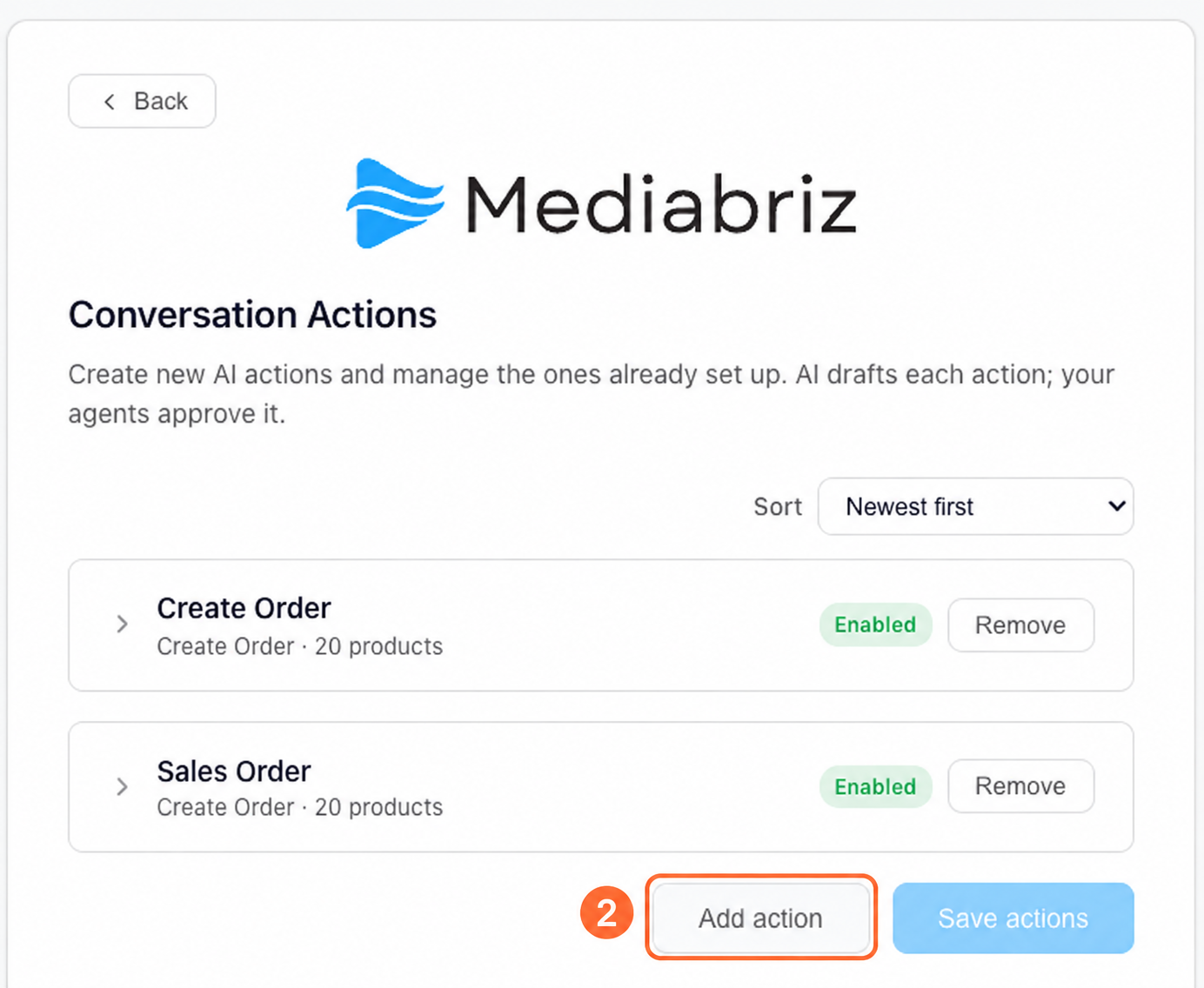
The Conversation Actions page displays the actions already configured for your organization. Select Add action.
Configure the action
Complete the settings for the new action.
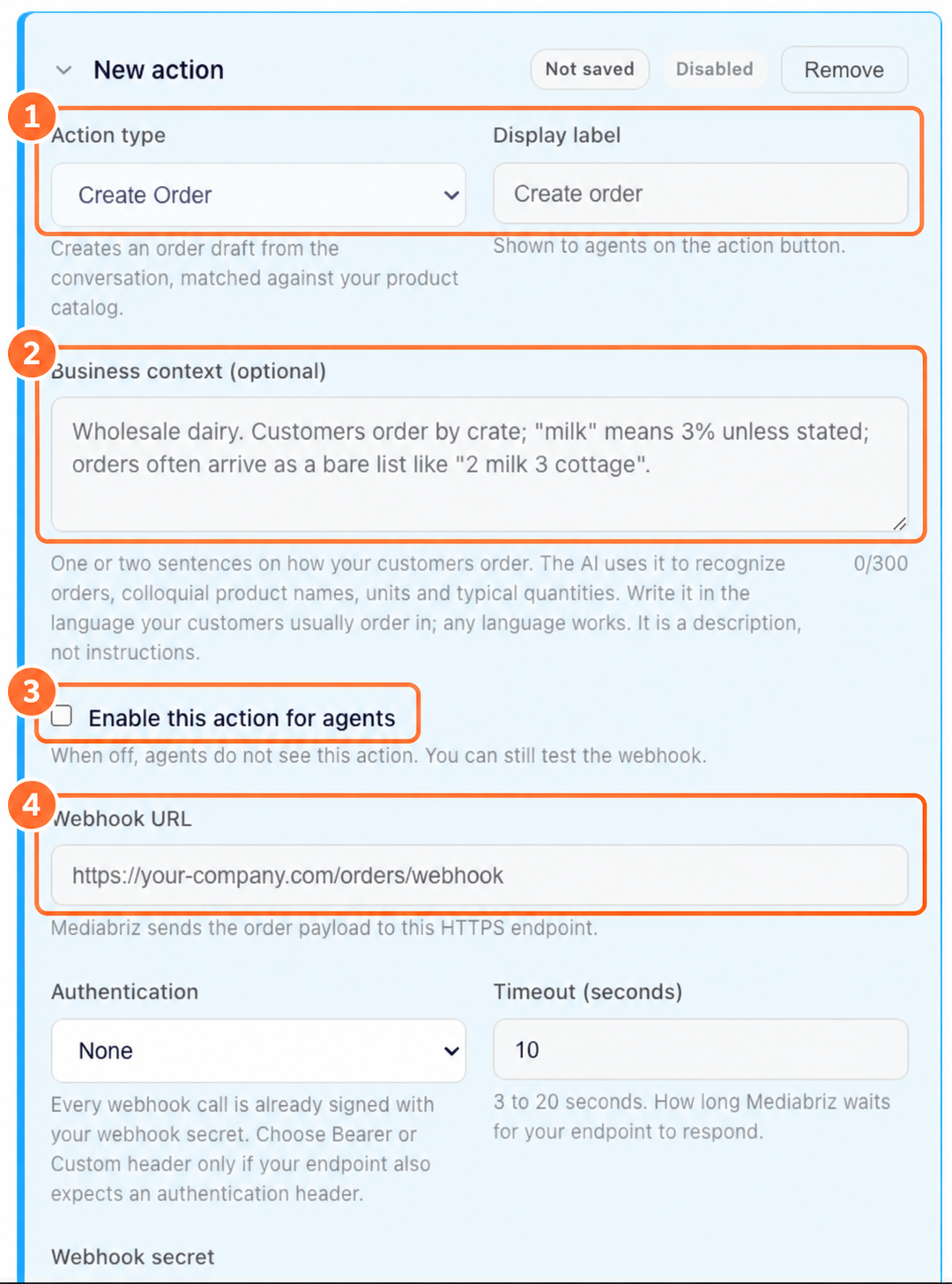
Action type
Select the type of action you want to create. Each action type is designed for a specific business process.
Currently available action types include:
- Create Order: Analyzes the conversation and prepares an order draft using the action's product catalog.
- Create Return: Analyzes the conversation and prepares a return draft, including the products being returned and relevant return details.
Each action is configured separately with its own settings, product catalog, webhook, business context, and custom fields.
Note: The action type cannot be changed after the action is saved.
Display label
Enter the name agents will see when selecting the action. You can customize the display label to match your organization's terminology, for example, Create Order, Sales Order or Create Return.
Business context (optional)
Add a one- or two-sentence background description of how your customers typically place orders.
The AI uses this description when analyzing a conversation so it can recognize orders faster and understand your customers' wording, including colloquial product names, units, typical quantities, and the shape orders usually take.
For example:
Wholesale dairy. Customers order by crate; "milk" means 3% unless stated; orders often arrive as a bare list like "2 milk 3 cottage".
For a Create Return action, describe how your customers usually report returns, for example:
Wholesale dairy. Returns are usually damaged or expired crates reported with a photo; "milk" means 3% unless stated; customers quote the delivery note number.
- Use the language your customers usually use when ordering. Any language works.
- Enter no more than 300 characters.
- The description does not limit what can be ordered.
- The description does not define rules or instructions for the action.
If a customer asks for something outside the description, the item can still be extracted and marked Needs attention for the agent to review.
Custom fields (optional)
Custom fields add information your system needs with each order or return, such as a delivery slot, payment term, routing tag or requested return outcome. Custom fields are never filled in by the AI.
Choose the field type
- Text: The agent enters a value.
- Dropdown: The agent selects one option from a list.
Configure the field
Set the field's Key, Label, Type, Visibility and Value or default. Text fields also have a Max length.
Configure Dropdown options
Add 2 to 20 options. Ten or fewer is recommended for easier agent use.
Each option has:
- A unique Label shown to the agent.
- A unique Key sent to your system.
The webhook receives the key, not the label. Once saved, the key remains unchanged if the label is edited. For a non-Latin label, enter a short key using a-z, 0-9 and underscores.
An agent-editable Dropdown can have no default or use one option as its default. A Dropdown that is hidden or shown but not editable must have options and a selected value.
Field limits
An action can have up to 10 fields shown to agents and 20 fields in total. Five or fewer visible fields is recommended.
A required Text or Dropdown field must be completed before the action can be sent. Empty optional fields are not included in the payload.
For details about values sent to your endpoint, see How do I integrate Create Order with my organization’s system?
Configure the webhook
Enter the Webhook URL for the system that will receive approved orders or returns. Configure any required authentication, webhook secret, and response timeout.
For the detailed endpoint, authentication, payload, response, and testing requirements, see How do I integrate Create Order with my organization’s system?
Configure agent access
Use Enable this action for agents to control whether agents can use the action. Keep it disabled while completing or testing the configuration. When disabled, agents do not see it in their available Conversation Actions.
Add the product catalog
Both Create Order and Create Return actions require a product catalog to match products mentioned in conversations with your organization's products and SKUs. Each action has its own catalog.
For preparation and upload instructions, see How do I prepare and upload a product catalog for Create Order?
Save the action
After completing the required configuration, save the action.
Once the action is configured and enabled, it becomes available to the relevant agents in their messaging conversations. Agents can select it, analyze the conversation, review the suggested order or return, and approve it before submission.
For the agent workflow, see How can I create an order from a customer conversation?
Was this article helpful?
That’s Great!
Thank you for your feedback
Sorry! We couldn't be helpful
Thank you for your feedback
Feedback sent
We appreciate your effort and will try to fix the article