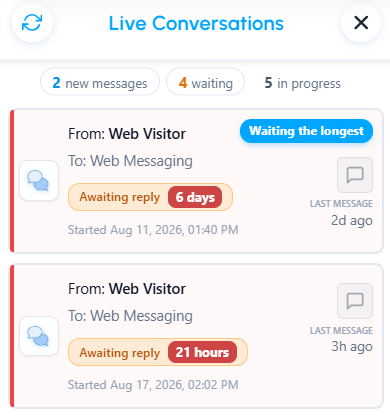
The Live Conversations view provides a centralized list of the conversations currently assigned to you, helping you monitor your workload and quickly identify what requires your attention.
Opening the Live Conversations view
You can open the Live Conversations view in either of the following ways:
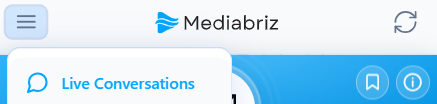
- Select Live Conversations from the main menu in the top-left corner of the Mediabriz application.
- Select the Priority Strip at the bottom of the Mediabriz main view to open the Live Conversations view and review your prioritized conversations.

Working with the Live Conversations view
From this view, you can:
- View all conversations currently assigned to you.
- Sort conversations by New Messages or Waiting.
- View a summary of your workload and filter conversations by New messages, Waiting, or In progress.
- Identify conversation priority using the colored priority indicator.
- See when a conversation contains unread messages, preview those messages directly from the list, and decide whether the conversation requires immediate attention.
- Open any conversation directly.
- After opening a conversation, use the Intro View to access Media or Message History.
- Reply to a customer from the Latest messages card on a messaging conversation.
The Live Conversations view helps you monitor your assigned conversations, prioritize your workload, and quickly access the information you need to respond.
Was this article helpful?
That’s Great!
Thank you for your feedback
Sorry! We couldn't be helpful
Thank you for your feedback
Feedback sent
We appreciate your effort and will try to fix the article