This guide explains how to configure Send Files to CRM after preparing the receiving-system connection.
1. Prepare the connection details
First follow Technical Integration Requirements, then Send Files to CRM: Receiving-System Integration to prepare the receiving system.
Before entering the settings below, have these details ready:
- Webhook URL and signing secret.
- Authentication method and response timeout.
- The information needed to identify the customer or case.
If you use a field such as case_number, your receiving system must recognize it. Adding a field in Mediabriz does not create CRM mapping automatically.
2. Open Mediabriz and add the action
Your Genesys Cloud account needs integration:cloudBriz:view and integrations:integration:view.
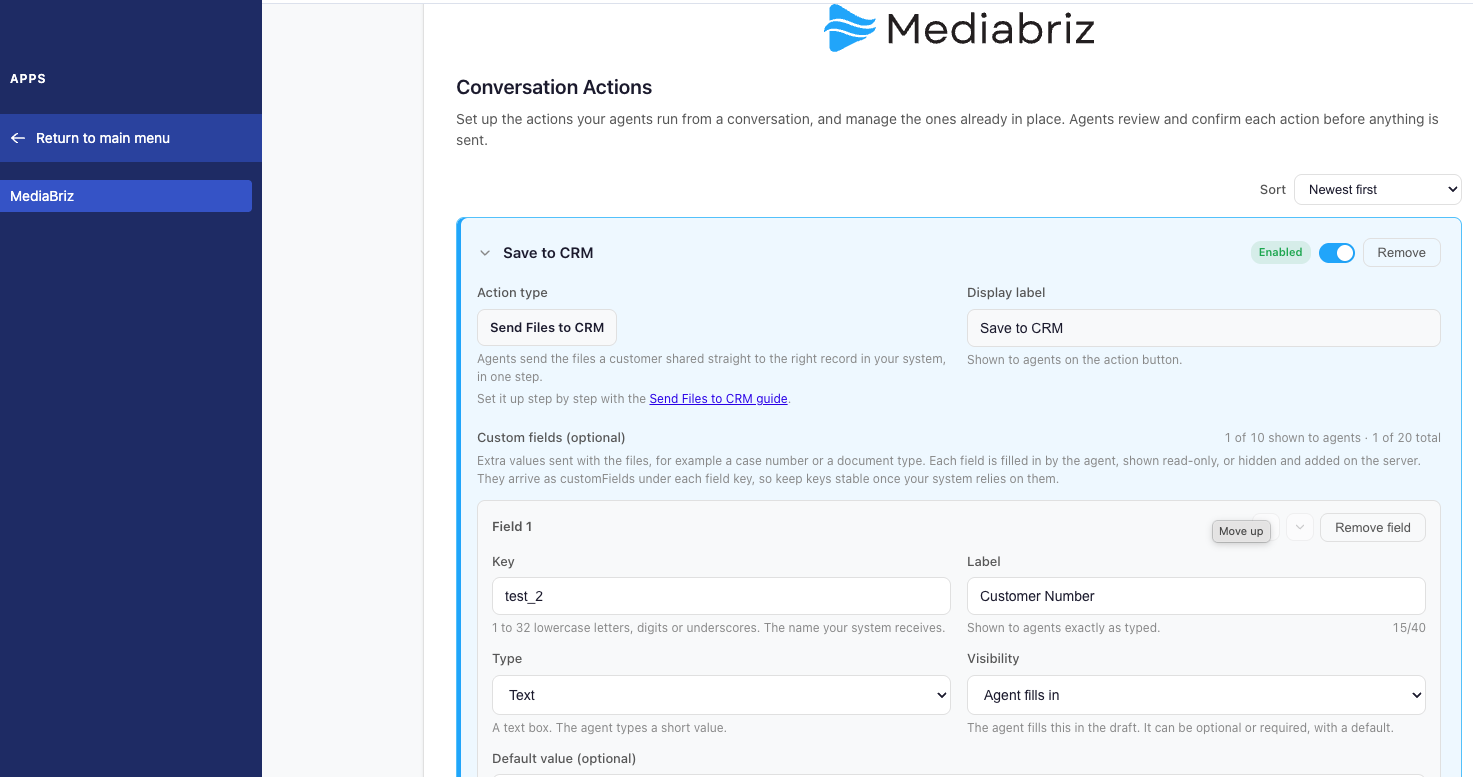
- Open Apps → Mediabriz → Conversation Actions.
- Select Add action, then choose Send Files to CRM under Action type. The type cannot be changed after saving.
- Enter a Display label in your agents’ language, such as Save to CRM. This is the action button’s name.
3. Add record details if needed
If the receiving system needs extra information, such as a case number, follow Configure Custom Fields. Use the field keys expected by your integration. Then continue below.
4. Enter the connection settings and save disabled
| Setting | What to enter |
|---|---|
| Webhook URL | The HTTPS receiving address prepared in step 1. |
| Authentication | Select None, Bearer token or Custom header to match the receiving system. For Custom header, enter its configured name. |
| Timeout (seconds) | The receiving system’s response timeout, from 3 to 20 seconds. |
| Webhook secret | The signing secret used by the receiving system. Required even when Authentication is None. It is stored encrypted and not displayed again. Enter a new value only to replace it. |
- Under Divisions, choose who can use the action. Leaving all unchecked includes every division.
- Select Create as disabled to save it hidden from agents while testing. For an existing action, select Save changes.
5. Test the complete connection
Start after the receiving system is ready and the connection settings are saved.
→ First: check the sample
Keep the action disabled for this test.
- Open Sample webhook payload. Review the sample data and custom-field values below. Copy or download the JSON if needed.
Sample data: marked mediabriz-test, with a fictional agent, customer and queue, an all-zeros conversation ID and a placeholder file, sample-invoice.pdf. Its link downloads nothing.
The sample customer reference is TEST-CUSTOMER-001; real file deliveries have a null customer reference. Do not use the sample reference for customer matching.
If custom fields are configured: the sample does not read a real conversation.
| Field source | Sample value |
|---|---|
| Fixed or hidden, set here | Configured value. |
| Editable, set here | Default or SAMPLE- plus the key, such as SAMPLE-case_number. |
| Dropdown | Default option key, or the first option’s key. |
| Genesys participant data | Fallback or SAMPLE- plus the key. |
- Select Test webhook. It uses the same address checks, signature, authentication and timeout as a real delivery.
- Check the displayed status code and response (
success,referenceIdandmessage). Confirm in the receiving logs that the signature was verified and the sample processed correctly.
→ Then: send a real file
- Choose the divisions for testing and enable the saved action with its top switch.
- Use the agent file-sending instructions to send an actual conversation file.
- Confirm the file downloads and is saved against the correct customer or case. Check the returned reference and custom-field values, including any read from Genesys.
When this succeeds, continue to step 6.
If a test fails: check the displayed error and receiving logs. Mediabriz does not retry automatically.
6. Make the action available
After the real-file test succeeds, confirm the intended divisions and leave the action enabled. The switch takes effect immediately. Agents with Genesys Cloud already open should reload it.
- Action missing: check that it is saved, enabled and available to the agent’s division.
- Send failed: inspect the receiving logs and Recent webhook deliveries (integration check).
- File security: with Mediabriz Guard, only clean files can be sent. Without Guard, files are sent without a security scan.
* For secure downloads, expiry, storage and duplicate handling, follow Receiving-System Integration.
* To pause, sort or remove actions and check recent deliveries, see Manage Configured Actions.
Was this article helpful?
That’s Great!
Thank you for your feedback
Sorry! We couldn't be helpful
Thank you for your feedback
Feedback sent
We appreciate your effort and will try to fix the article