Yes. You can use Media Timeline to view the conversation messages related to a specific media item.
Open Media Timeline
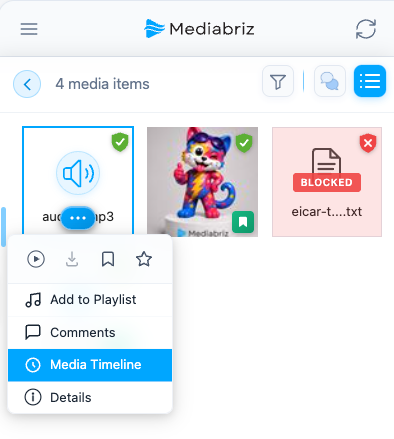
- Open the media item’s menu.
- Select Media Timeline.
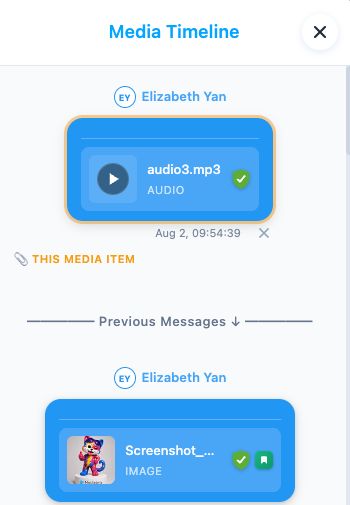
The Media Timeline opens with the selected media item highlighted. The surrounding messages help you understand when and why the media was shared and provide additional conversation context.
Files sent on carousel cards
A carousel is a message with a row of cards the customer can scroll through, for example a WhatsApp carousel template with up to 10 cards. Each card can carry its own image or video. Each card's file appears in the Media gallery as its own media item, and it can appear a moment after the conversation's other media.
When you select Media Timeline for a card's file, the carousel message is highlighted. The file is shown inside its card, not as a separate message. Use the arrows on the carousel to move between cards.
- An image card shows its picture.
- A video card shows a play button, the file name and a preview picture when one is available. Select it to play the video in the Mediabriz video preview.
- Audio and document cards show the file name. Open the file from the Media gallery.
If Genesys Cloud also recorded a card's file as a separate attachment, Mediabriz shows it once, inside its card. Mediabriz Guard checks card files like any other file, so a file that is blocked or still being scanned is not shown or opened.
Was this article helpful?
That’s Great!
Thank you for your feedback
Sorry! We couldn't be helpful
Thank you for your feedback
Feedback sent
We appreciate your effort and will try to fix the article