You can export a conversation as a PDF from Message History.
Export a conversation
- From the Intro view, select Messages to open the full Message History.
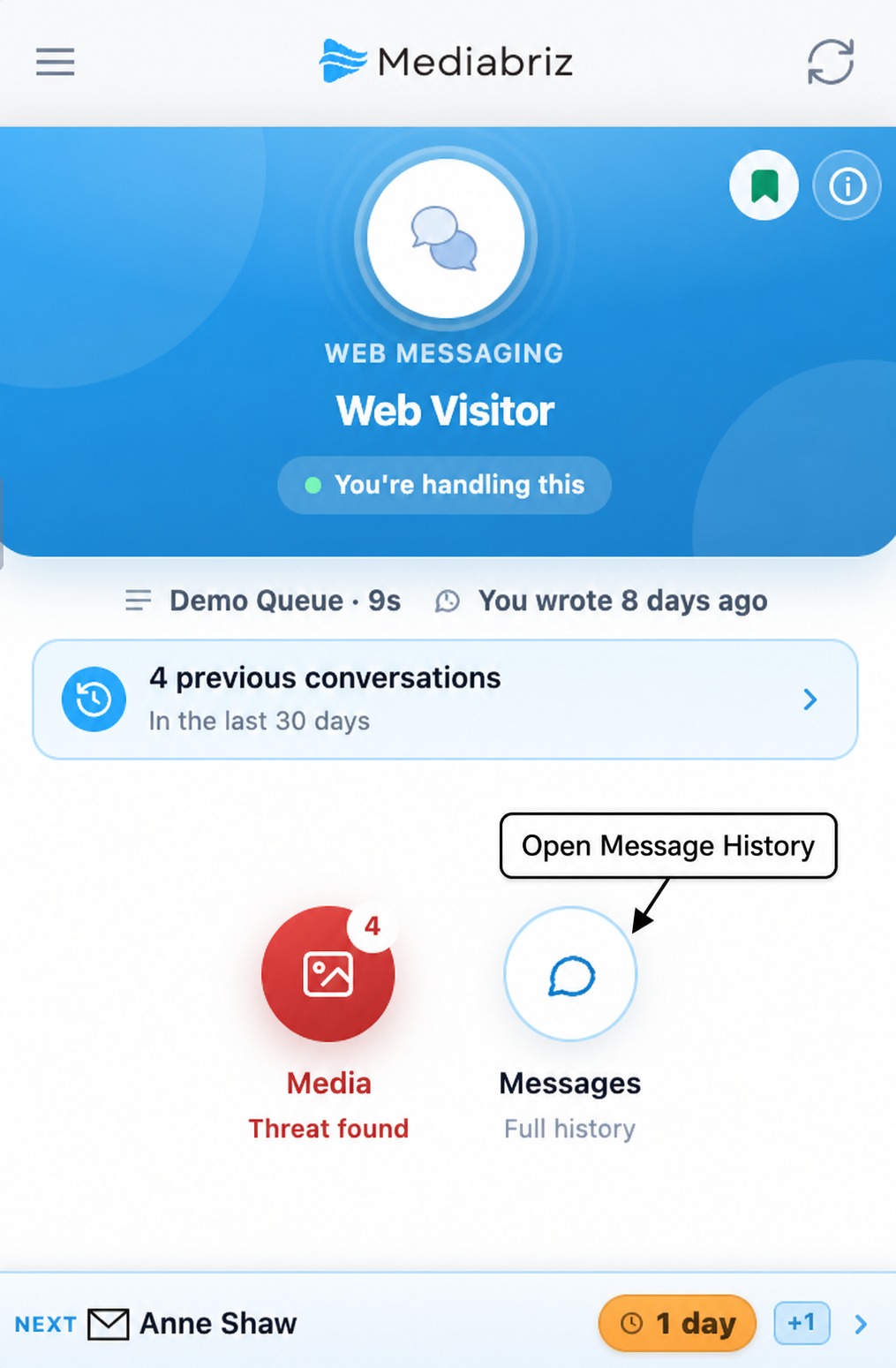
- At the top of Message History, select the conversation-channel icon. For an email conversation, this appears as an email icon; for a web-messaging conversation, it appears as a message icon.
- Select Export to PDF.
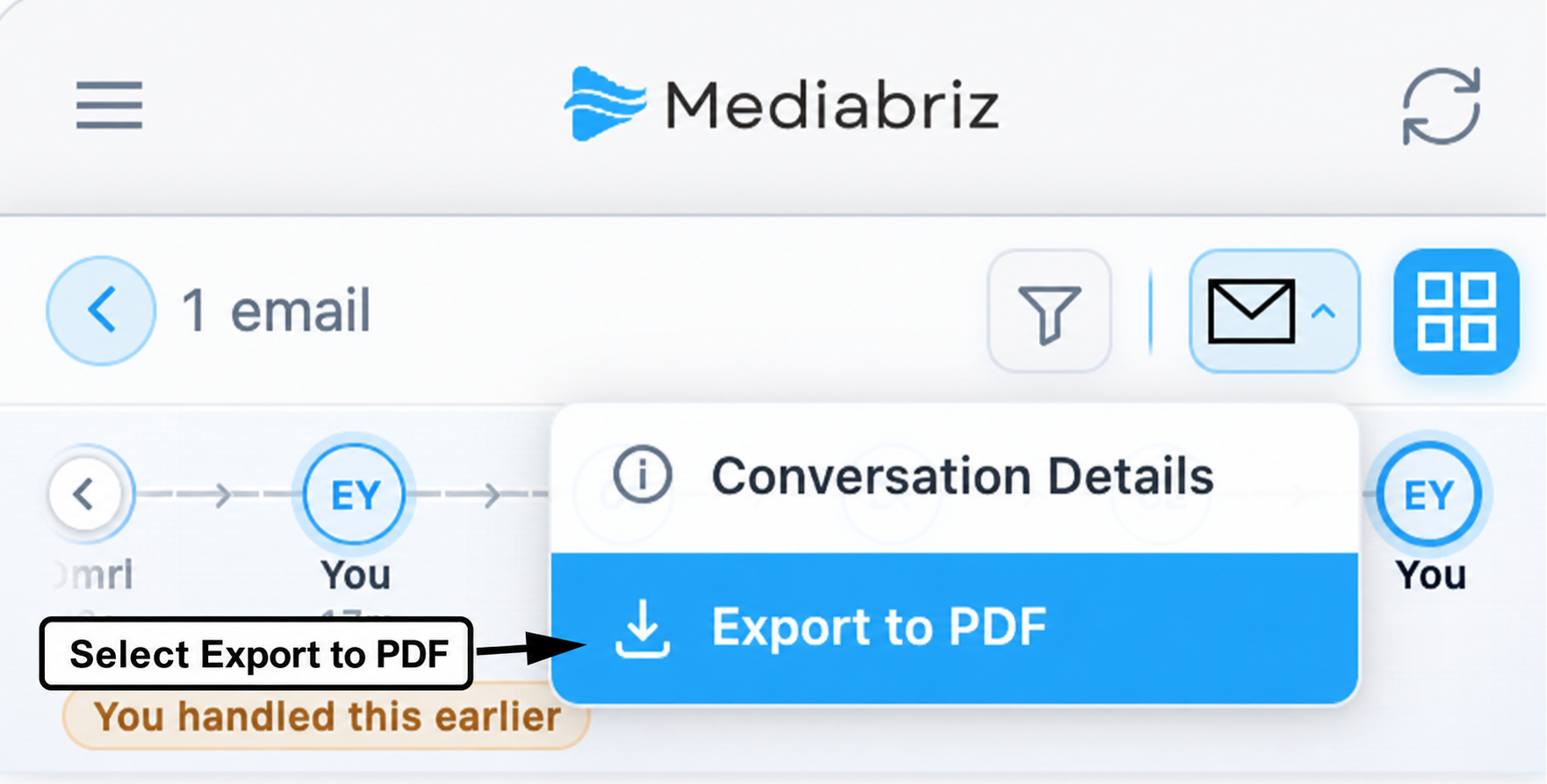
The generated PDF contains the conversation messages in chronological order and can be saved to your device.
Files are listed by name under the message they were sent with. The PDF does not contain the files themselves.
Please note that export availability depends on the permissions configured by your administrator.
Carousel messages
For a carousel, such as a WhatsApp carousel template, the PDF lists each card in order with its number, its text and its buttons. A card with no text keeps its number, so its buttons are not read as the previous card's. Each card's file is listed under the message as Card 1: file name, Card 2: file name and so on, or for example Card 3: Video when the file has no name. Each file is listed once, even when Genesys Cloud also recorded it as a separate attachment. Like any attachment, a card's file is marked when Mediabriz Guard blocked it or has not finished scanning it.
Related article
Was this article helpful?
That’s Great!
Thank you for your feedback
Sorry! We couldn't be helpful
Thank you for your feedback
Feedback sent
We appreciate your effort and will try to fix the article