Set up organization notifications to keep the right person or team informed when Mediabriz Guard detects a threat.
Choose who receives these notifications in Mediabriz Settings. Each notification is sent by email and includes the threat details and a link to the related conversation.
Note: Only users with Mediabriz administrator permissions can view and configure Settings.
Configure threat notifications
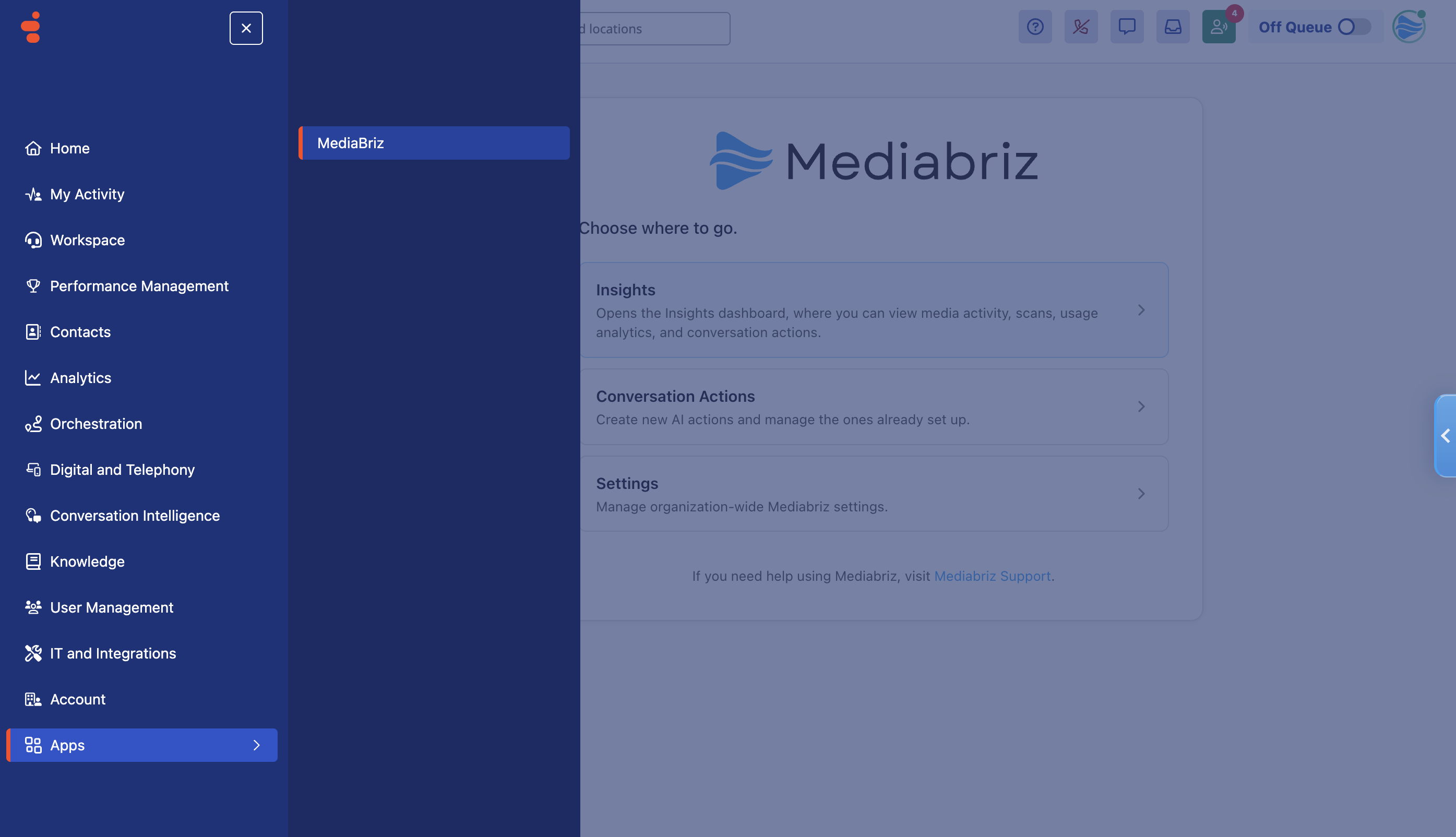
- From the Genesys Cloud main menu, go to Apps and select Mediabriz.
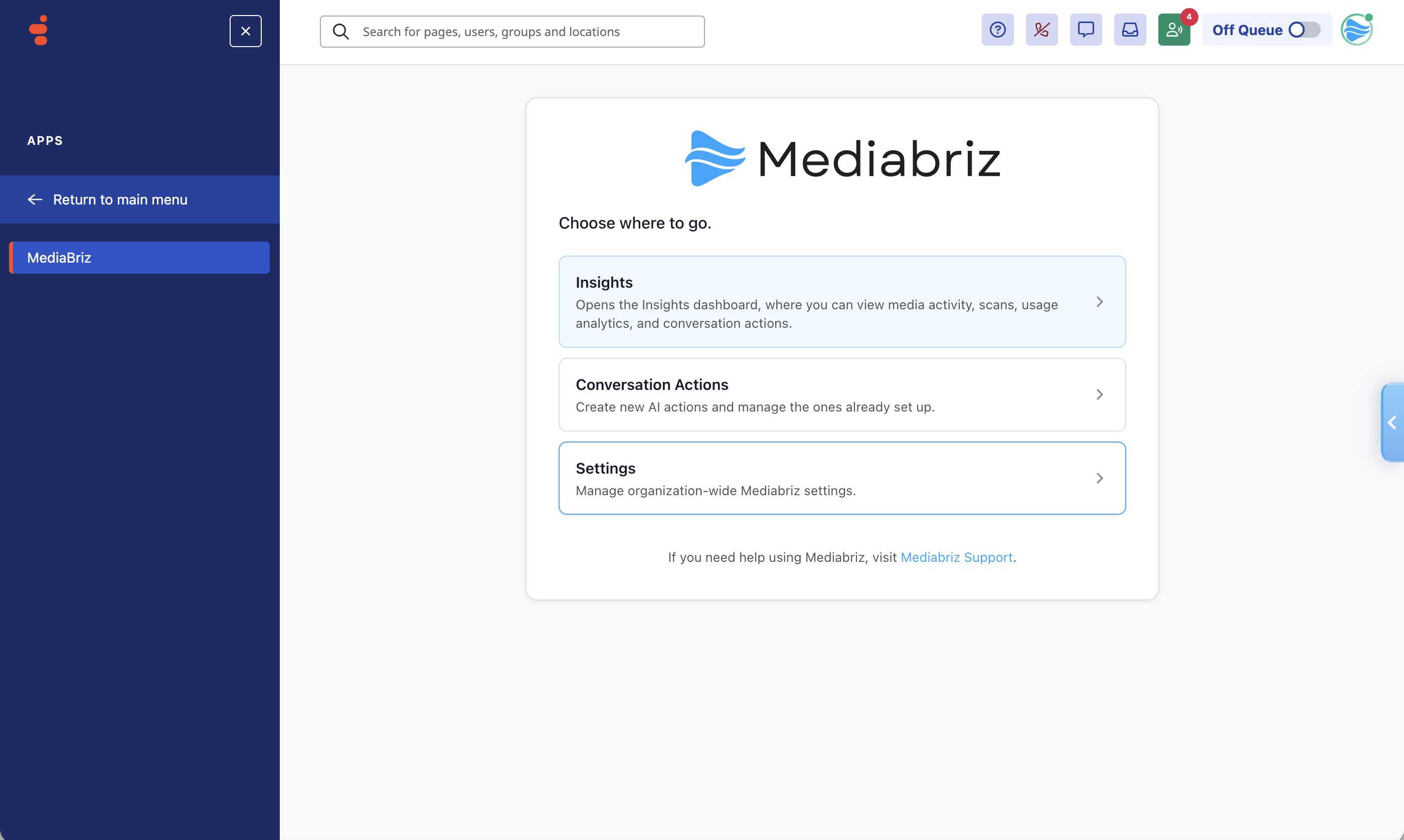
- On the Mediabriz main screen, select Settings.
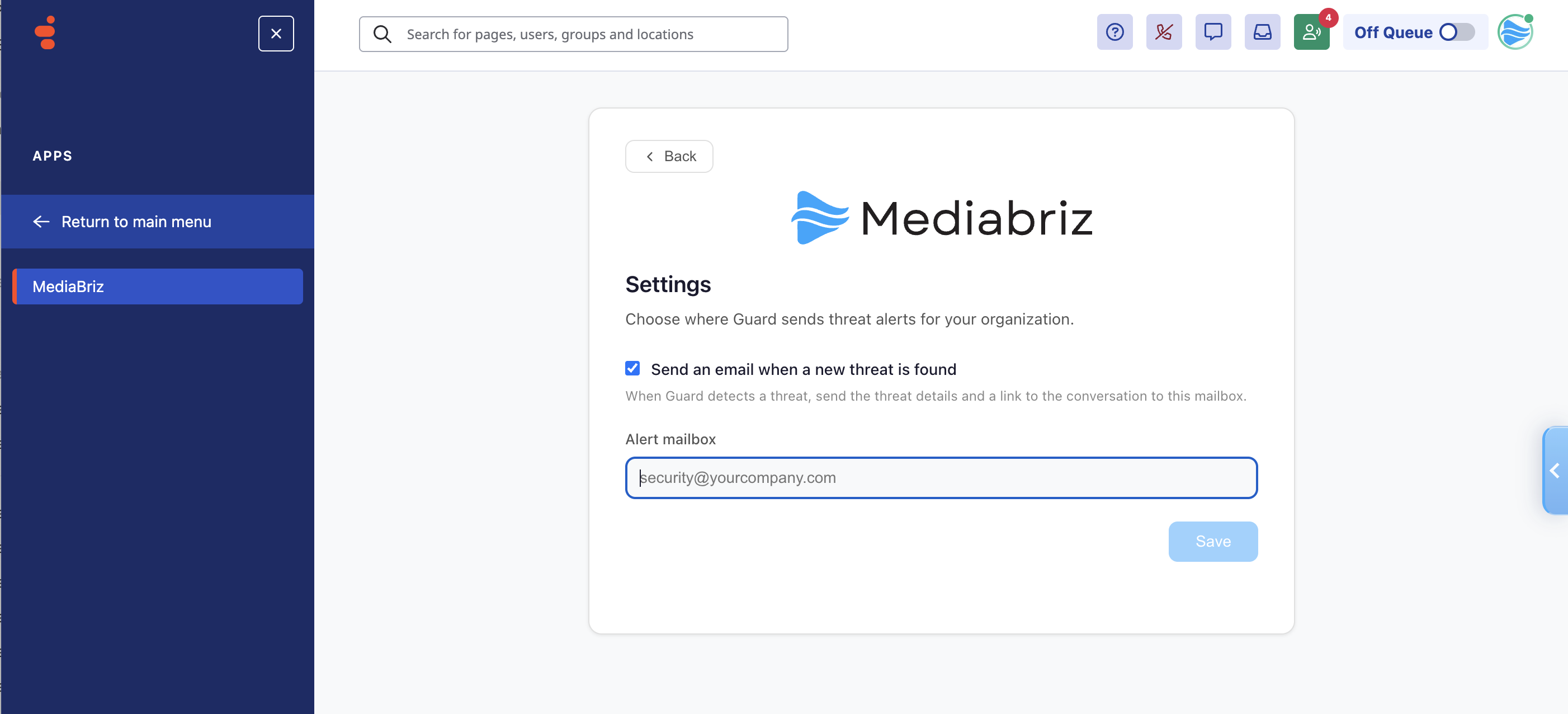
- Select the Send an email when a new threat is found checkbox.
- In the Alert mailbox field, enter the email address of the person or team that should receive threat notifications.
- To apply your settings, select Save.
Mediabriz Guard will now notify this mailbox whenever a new threat is detected.
Users with the required permissions can also review detected threats at any time in the Mediabriz Insights Dashboard. For details, see the Security Threat Dashboard.
Note: Use a mailbox that the responsible person or team checks regularly so they can review and respond to threat notifications.
Was this article helpful?
That’s Great!
Thank you for your feedback
Sorry! We couldn't be helpful
Thank you for your feedback
Feedback sent
We appreciate your effort and will try to fix the article