Step 1 - Install the Mediabriz Browser Extension
After the wizard completes, install the Mediabriz browser extension for the browser used by your organization.
--> For enterprise deployment, see the Enterprise Deployment Guide.<--
Choose the relevant extension for your environment:
Chrome Extension
Microsoft Edge Extension
Step 2 - Configure the Browser Extension
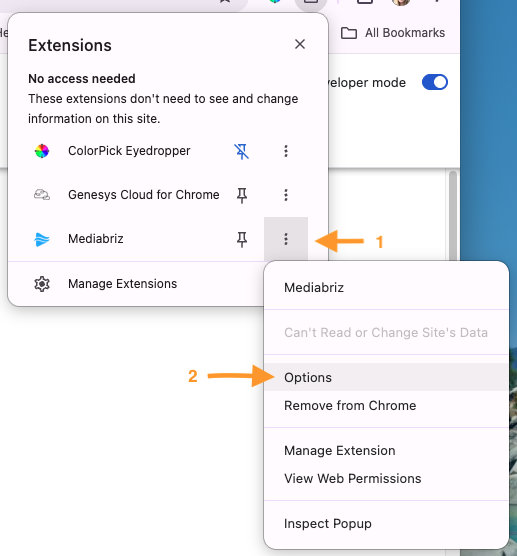
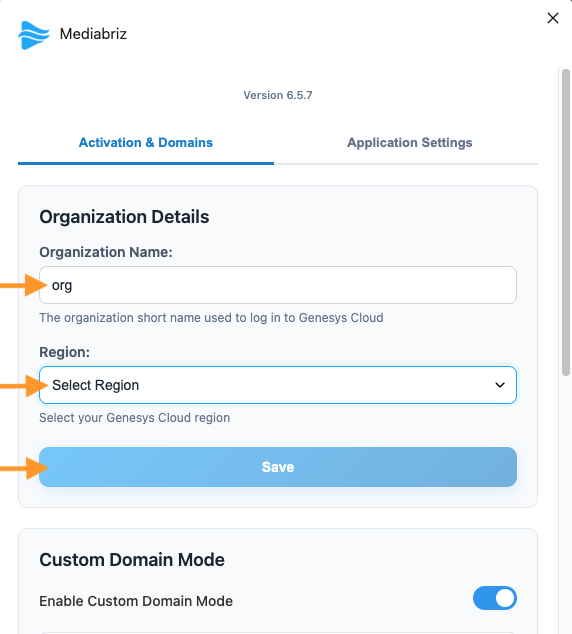
Open the extension options and enter:
- Your Genesys cloud organization short name
- Your Genesys Cloud region
Save the settings.
Optional: custom domains. If agents use Mediabriz on your own web application, such as a CRM, as well as or instead of Genesys Cloud, turn on Enable Custom Domain Mode, add the domains, click Save Custom Domains and select Allow when the browser asks. See What information is required in the extension settings? for the domain format. For enterprise deployment, see Custom Domain Deployment.
The installation is now complete.
Step 3 - Genesys Cloud Permissions
Users must have the appropriate Genesys Cloud permissions to use Mediabriz features.
Viewing conversations requires:
analytics:conversationDetail:viewconversation:message:view
Note:
1. These permissions are required to access previous conversations and to view the Customer Journey displayed in the Message History view. If a user does not have the required permissions in Genesys Cloud, these capabilities will not be available in Mediabriz.
2. Neither integration:cloudBriz:view (cloudBriz - View) nor integration:cloudBriz:admin (cloudBriz - Admin) is required for users who only use the Mediabriz browser extension. The Genesys Cloud permissions listed above are still required to view conversations.
For Insights access and permission details, see the Mediabriz Insights Dashboard article.
Step 4 - Network Requirements
MediaBriz requires outbound HTTPS access (port 443) to the domain below, in addition to your existing Genesys Cloud connectivity.
No inbound rules or ports are required.
Firewall Requirements
https://mediabriz.com/security#corporate-firewall-requirements
Next, Open Mediabriz Insights dashboard.
Need Help?
Or visit the:
Was this article helpful?
That’s Great!
Thank you for your feedback
Sorry! We couldn't be helpful
Thank you for your feedback
Feedback sent
We appreciate your effort and will try to fix the article