Need to send a quick message to a customer? You can reply from Live Conversations without opening the conversation in Agent Workspace.
Send a reply
- Open Live Conversations from the Mediabriz menu or the Priority Strip.
- Find the conversation and select the Preview latest messages icon.
- In the Latest messages card, type your message in Reply. The field shows Short reply before you start typing.
- Select Send. Pressing Enter starts a new line; it does not send your message.
After you send it, your message appears in the card as You. The Reply field clears, and the waiting time updates.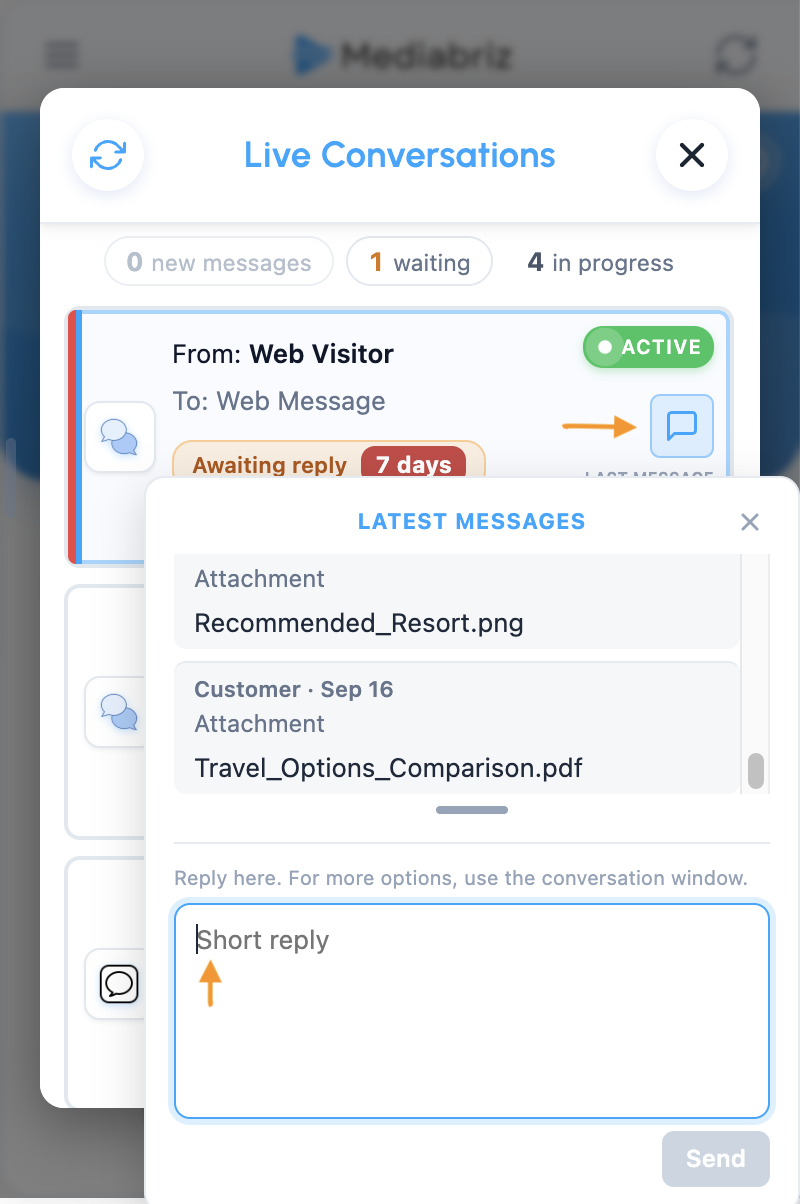
Tip: The card shows the 25 most recent messages, with the newest at the bottom. Open the conversation window to see older messages. You can drag the grip below the messages to make the card taller or shorter.
Note: Reply works with all supported messaging channels. For email, reply in Agent Workspace.
Why do some channels stop allowing replies?
Messaging channels set their own time limits for free-text replies. The time starts when the customer last messaged you:
- WhatsApp: You can send a free-text reply for up to 24 hours.
- Facebook Messenger and Instagram: You can send one for up to 7 days.
- Web messaging and SMS: These time limits do not apply.
When a channel's time window is nearly over, the Reply field disappears. Continue in Agent Workspace, where other reply options, such as templates, may be available. The same time limits apply when an Open Messaging conversation is shown as WhatsApp, Messenger, or Instagram.
Message length: SMS shows a character counter. Its limit may change if your message includes emoji or characters from another language. On other channels, the field stops accepting text when you reach that channel's limit.
If your reply does not go through
- Try again shortly, or use Agent Workspace. Your message is still in the field. Wait a moment and try Send again, or continue in Agent Workspace.
- The reply may not have been sent. Check Agent Workspace before sending again. Check the conversation there first so you do not send the same message twice.
- Reply sent, but an error was received. Continue in the conversation window. The message may not have reached the customer. Check its status in Agent Workspace.
If you see Use Agent Workspace to reply., continue there. If it happens on every messaging conversation, ask your administrator to check your Genesys Cloud access.
Was this article helpful?
That’s Great!
Thank you for your feedback
Sorry! We couldn't be helpful
Thank you for your feedback
Feedback sent
We appreciate your effort and will try to fix the article