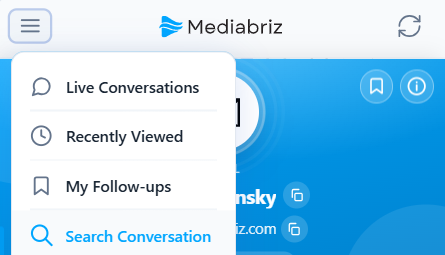
To search for a conversation, tap the hamburger icon in the top-left corner of the main screen (Gallery view) and select Search Conversation from the menu.
The search window includes two tabs: Details and ID.
By default, the Details tab is selected.
Search by Details
Use this tab to search for conversations using filters such as:
My Conversations – limits the results to conversations assigned to you
Channel Type – filter by channel (WhatsApp, SMS, Email, Instagram, Voice, etc.). All Channels includes calls.
Must Contain Media – shows only conversations that include media items. This option is available only for certain messaging channels that support media sharing (for example, WhatsApp). When it is on, calls are left out, and it is unavailable when only Voice is selected.
Conversation Start Time – filter results by date or date range
External tag: type a value in the Enter external tag box to find conversations with exactly that external tag, for example an order number or a customer ID. An external tag is a short reference that your Genesys Cloud flows set on a conversation with the Architect Set External Tag action. It is at most 36 characters, and the match is exact. Leave the box empty to search without it.
Adjust the filters as needed and run the search to display matching conversations.
Tip: if your organization has turned on Include conversations with the same external tag, you do not need to search to find conversations with the same external tag as the one you are viewing. The Overview lists them with your customer's other conversations from the last 30 days. See How can I identify a customer and view their previous conversations?.
Calls in the results
When Voice or All Channels is selected, calls are listed with the other results, newest first. A call is marked Call and Not viewable here, and shows the phone number, whether it is in progress or ended, Inbound or Outbound, how long it lasted, the queue, and who handled it. Calls can't be opened in Mediabriz; they open in Genesys Cloud.
Calls never take the place of a messaging or email result. When other channels are selected too, Mediabriz shows the calls that fall within the results already loaded, and older calls appear as you load more results. If more than 100 calls match, the list says so; select only Voice to list them all.
Search by ID
Select the ID tab if you want to locate a specific conversation.
Enter the Conversation ID, then choose whether the conversation is Email or Messaging by selecting the relevant icon.
After selecting the type, press Search.
You can reset the search at any time using the reset icon.
The ID tab finds Email and Messaging conversations only. If the ID belongs to a voice call, Mediabriz shows This ID belongs to a voice call and does not open it.

Was this article helpful?
That’s Great!
Thank you for your feedback
Sorry! We couldn't be helpful
Thank you for your feedback
Feedback sent
We appreciate your effort and will try to fix the article