Inline reply lets you answer a customer from Live Conversations or the conversation's message history.
Reply from Live Conversations
- Open Live Conversations from the Mediabriz menu or Priority Strip.
- Select Preview latest messages on the conversation.
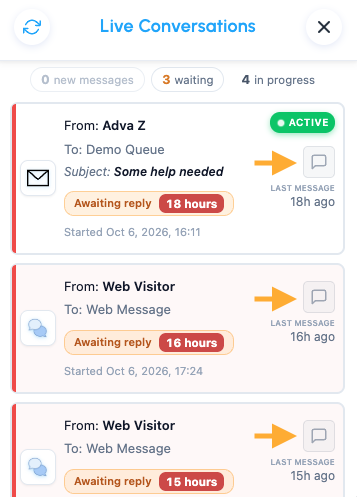
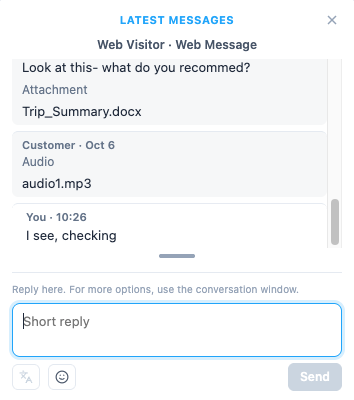
- In the Latest messages card, type in Reply (the Short reply field).
- After writing the message, click 'Send' (Enter adds a new line).
After Genesys Cloud accepts your reply, it appears as You and the field clears.
Reply from the message history
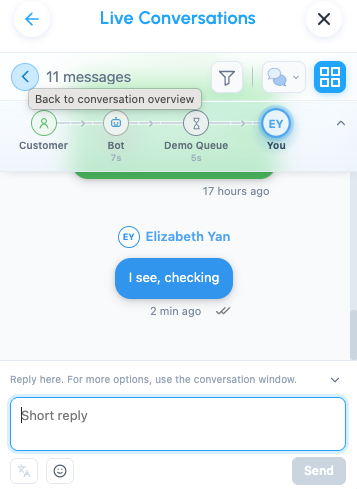
- Select Messages on the conversation's Overview, or open the conversation from Live Conversations and select Messages.
- Type in Reply below the messages and select Send. Your message appears in the history.
Both places share one draft per conversation, so you can start in one and continue in the other. Drafts are temporary: sending, reloading, signing out, switching organization or the conversation leaving your list clears them.
Use Hide reply or Show reply to collapse or expand the field in the message history.
Format, add emojis or translate
- WhatsApp: select text or place the cursor inside a word, then select B or I for bold or italic.
- Emojis: select the smiley (Insert emoji), then choose an emoji.
- Translate your reply: select Translate, check the language and result, then select Send. Use the language list to change languages or Undo to restore your original.
- Translate a customer message: hover over it in the card and select Translate message. Select Show original to return to the customer's words.
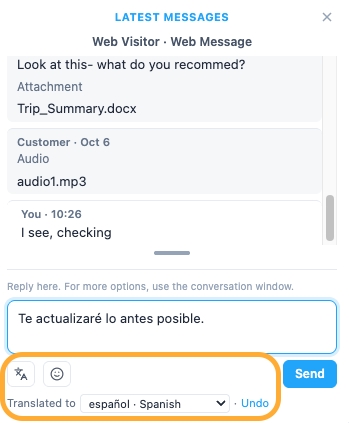
Translation is available when your browser supports it and runs on your computer. The first use may download a language model. If a translation is too long, shorten your original and retry.
When can I reply?
You must have accepted and be connected to a conversation on your Live Conversations list. Reply supports web messaging, SMS, WhatsApp, Messenger, Instagram and Open Messaging. Email replies use the conversation window.
- WhatsApp: reply within 24 hours of the customer's last message.
- Messenger and Instagram: within 7 days.
- Web messaging and SMS: no reply window.
Reply disappears shortly before a window closes. The same limits apply to Open Messaging shown as WhatsApp, Messenger or Instagram. Histories opened from Search, Recent, Follow-ups, Customer history or the Feed have no Reply field.
Message limits and sending problems
- SMS: follow the live counter. The limit changes from 765 to 335 when you add characters such as Hebrew, Arabic or emoji. Other channels stop accepting text at their limit. Only newly added text that fits is inserted.
- Temporary failure: your text is kept. Wait briefly and retry.
- Unsure whether it sent, or a delivery error: check the conversation window before resending to avoid duplicates.
- Reply unavailable: the conversation may have ended, been transferred or parked, or its reply window may have closed. If this affects every conversation, ask your administrator to check access.
Use the conversation window for attachments, templates, canned responses, email, notes, wrap-up and transfers.
*** For administrators: What permissions do agents need to reply from Mediabriz? ***
Was this article helpful?
That’s Great!
Thank you for your feedback
Sorry! We couldn't be helpful
Thank you for your feedback
Feedback sent
We appreciate your effort and will try to fix the article