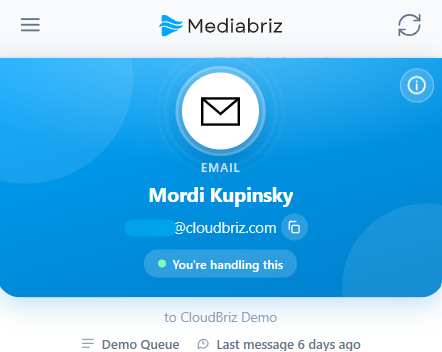
When handling an Email or WhatsApp conversation, MediaBriz automatically identifies the customer and displays their details on the main home panel.
Here is how to review customer information and check past conversations:
1. View Customer Details
At the top of the main panel, you can immediately identify the customer:
Customer Name: Displayed clearly at the center of the panel.
Contact Details: Their email address or phone number. Click the copy icon next to it for quick copy-pasting.
2. View Past Conversations (Last 30 Days)
If the customer has reached out recently, a button such as 3 more conversations · last 30 days will appear in the middle of the panel (showing how many other conversations they had in the last 30 days):
Click this button.

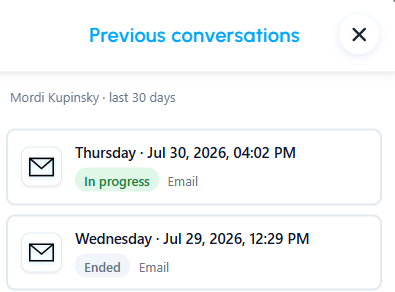
The Other Conversations list will pop up, listing all conversations from the past 30 days with their Date & Time, Channel (Email/WhatsApp), and Status (In progress / Ended). Calls are listed too, marked Call and Not viewable here, with direction, duration and queue. They open in Genesys Cloud, not in Mediabriz.
Open & Read History: Click on any past conversation from the list to view its complete message history and see exactly what was discussed.
3. How many conversations are listed
The list shows up to 50 conversations from the last 30 days, newest first. When there are more, the Overview reads 50+ more conversations, and the list ends with Showing max 50 results. In a long list, the arrow button at the bottom right takes you back to the top.
4. Conversations with the same external tag
An external tag is a short reference, such as a case or order number, that your Genesys Cloud flows can set on a conversation with the Architect Set External Tag action. When your admin turns on Include conversations with the same external tag, the list also shows conversations from the last 30 days that have the same external tag as the conversation you are viewing.
The setting is off unless your admin turns it on.
Conversations found this way are marked with an External tag label and the tag value. A long value is shortened; hover over the label to see it in full.
These conversations can be with other customers, for example a colleague of your customer who wrote about the same case. The line under the list title reads Includes conversations with the same external tag whenever such conversations are listed.
The Conversation from today label and the Previous conversation preview describe your customer only. They do not count conversations found only by the external tag.
A tag longer than 36 characters is not searched.
If the conversation has a tag but Mediabriz cannot identify the customer (for example an anonymous web visitor), the list can still show the conversations with the same tag.
Turn it on (admins)
Required permission: integration:cloudBriz:admin (cloudBriz - Admin).
In Genesys Cloud, open Apps > Mediabriz > Organization settings.
Under Other conversations, select Include conversations with the same external tag.
Select Save.
The change applies to each agent the next time they sign in to Mediabriz. To apply it right away, the agent can sign out of Mediabriz and sign in again. To give each case its own tag, set a value that is unique to the case, such as a case number. A shared value such as "VIP" lists every conversation with that value, up to 50.
Was this article helpful?
That’s Great!
Thank you for your feedback
Sorry! We couldn't be helpful
Thank you for your feedback
Feedback sent
We appreciate your effort and will try to fix the article