The Message History displays the complete history of a digital conversation in chronological order. It helps you understand the full context of the customer interaction.
Opening Message History
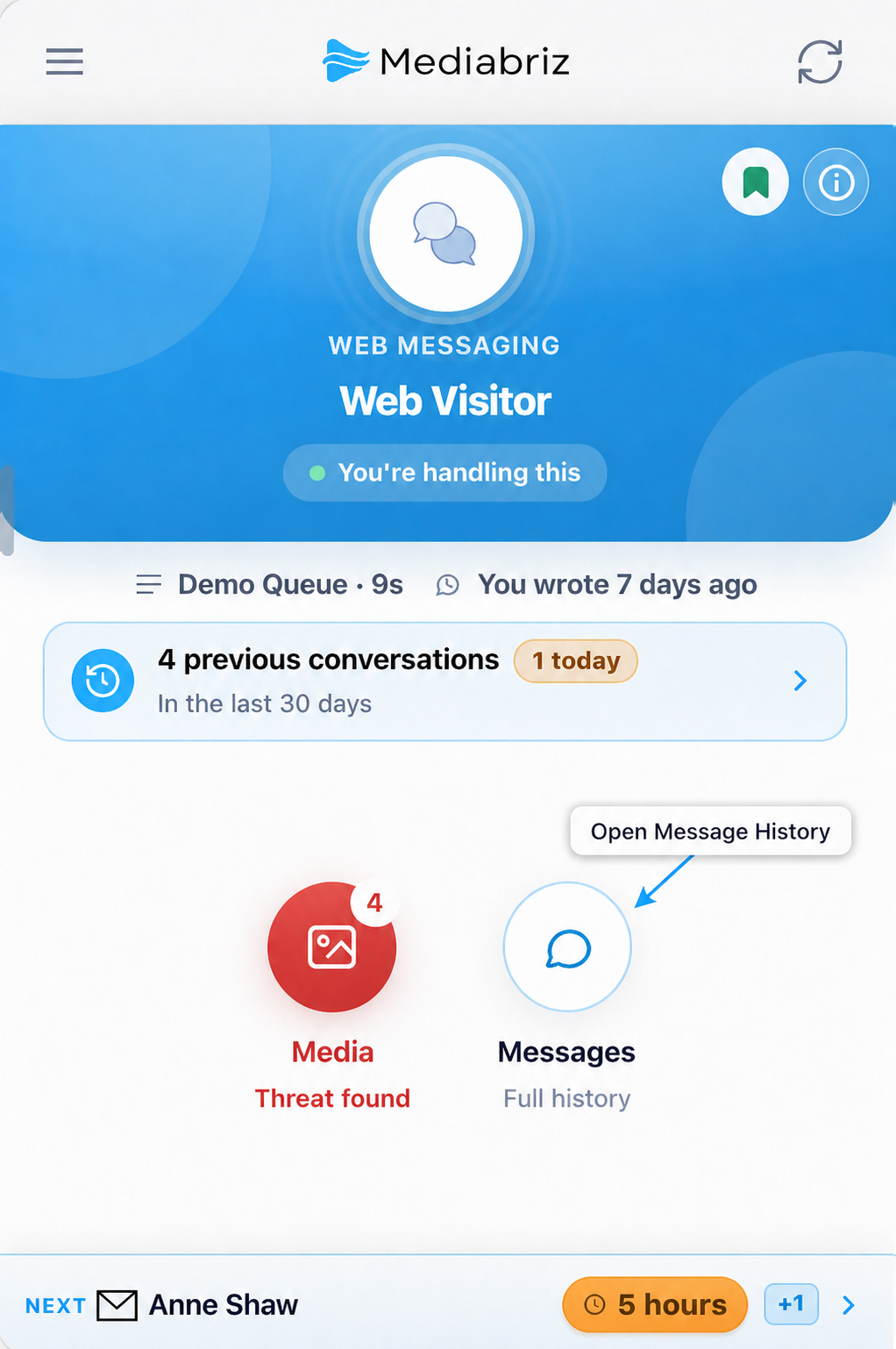
- Open the conversation you want to review. The conversation opens in the Intro view, which is the main conversation view.
- Select the blue circular message icon to open Message History.
The text displayed beneath the icon changes according to the conversation channel. For example, it may display Emails, Messages, or other channel-specific wording.
Working with Message History
From Message History, you can:
- Review messages and media items in chronological order.
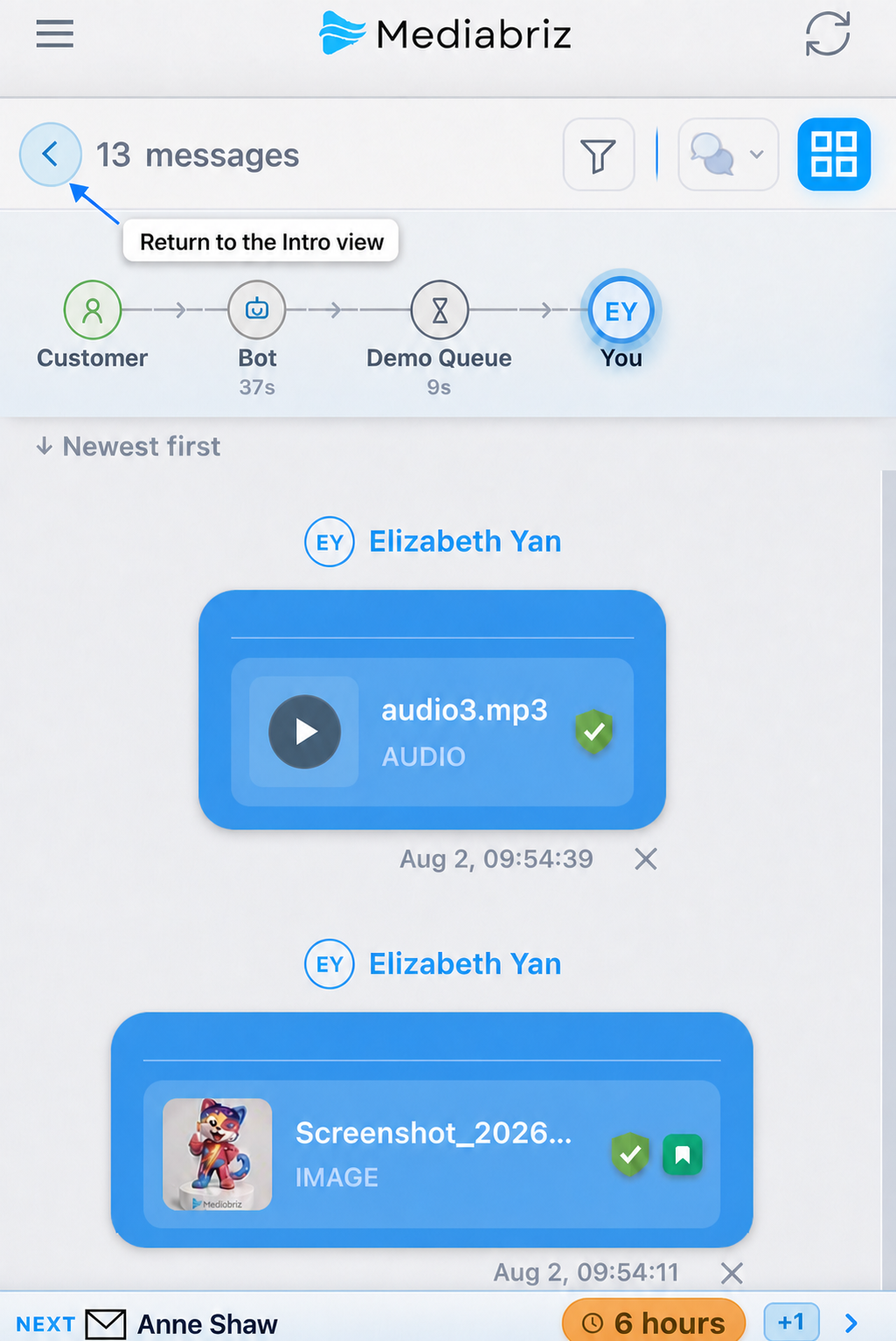
- Understand how the conversation progressed between the customer, bot, queue, and agent.
- Navigate between stages of the conversation using the Customer Journey.
- Use the Priority Strip to identify the next conversation that requires your attention.
Returning to the Intro view
Select the back icon in the upper-left corner of Message History to return to the Intro view.
Related article
Was this article helpful?
That’s Great!
Thank you for your feedback
Sorry! We couldn't be helpful
Thank you for your feedback
Feedback sent
We appreciate your effort and will try to fix the article